
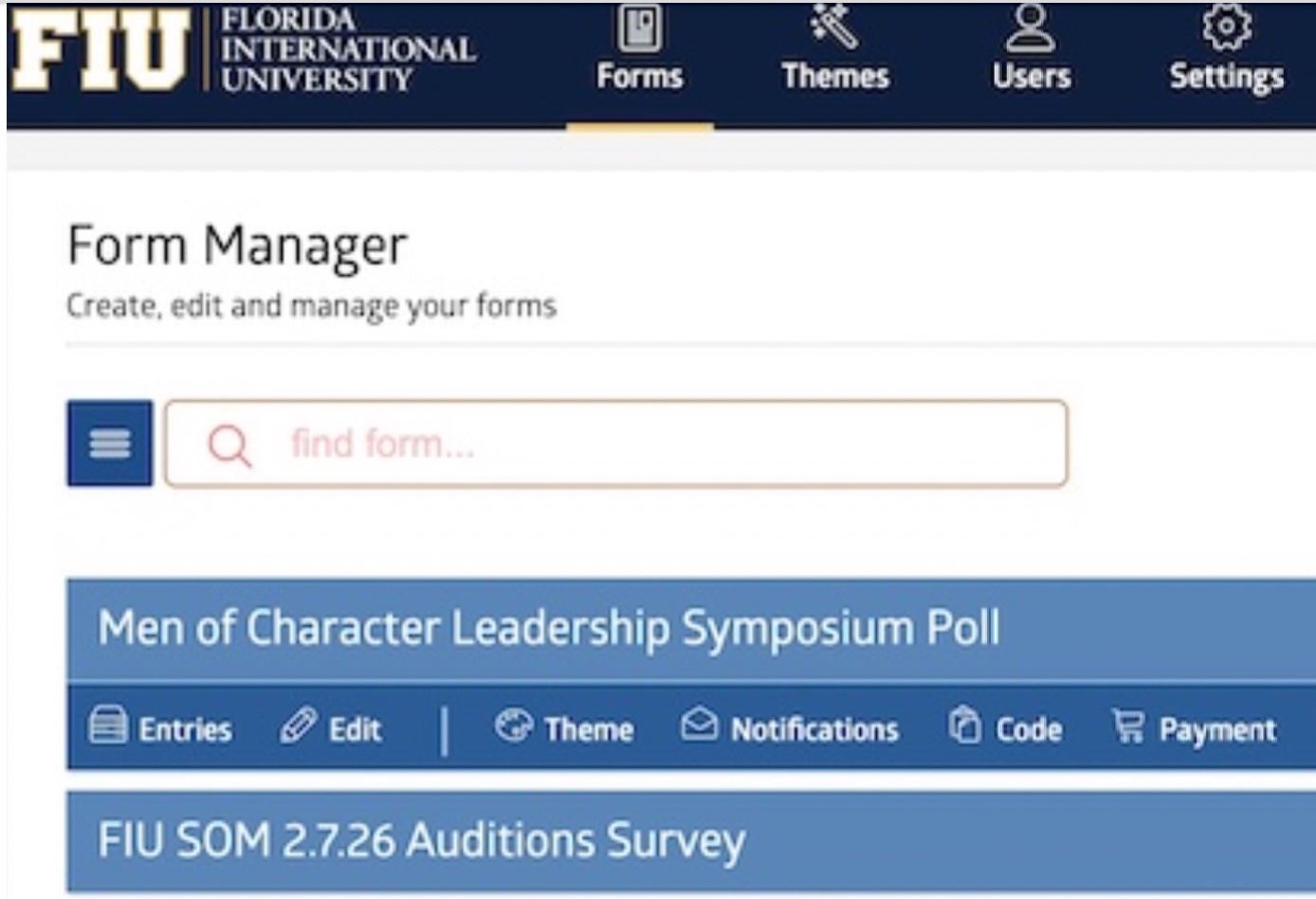
As an FIU Webforms user, if you've ever had to back up your form entries or wanted to track entries in Excel or another spreadsheet program, it's useful to know how to download your form entries. Thankfully, it's a simple process!
First, log in to Webforms and find the form you wish to download entries for and click on the form name to open the options tab.
If you're having any trouble finding the specific form, there is a helpful code snippet you can use to open the public form directly in webforms.
Once you've opened the form options, click the Entries icon—the first option in the set options.

From here, you will see the list of entries. To download the data, hit the export icon located right next to the delete icon.
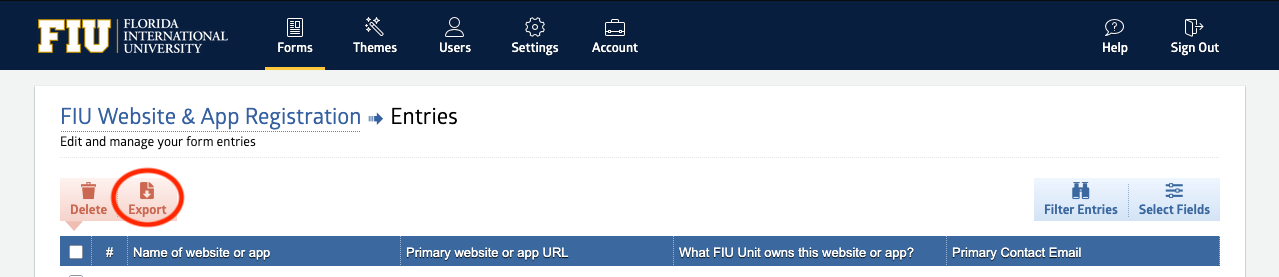
Once you've clicked export, you will see this screen asking in what format you want the data exported.
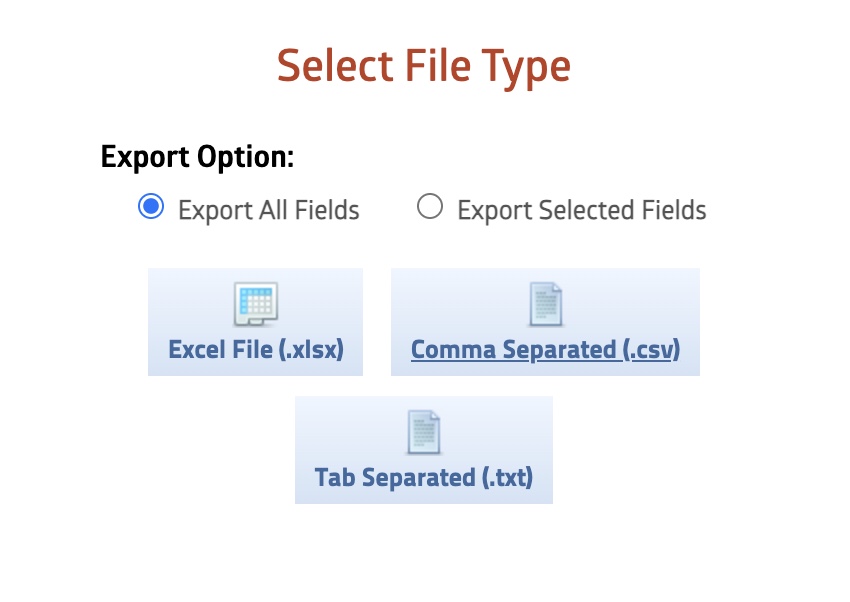
Once you've selected your preferred format, you're all set! Now you have the complete list of entries for the form, as well as detailed information regarding how users interacted with it.
If you no longer need the form, we encourage you to disable or delete the form. Webforms is a shared service and deleting or disabling old forms can clear up space for new forms.
If you have any questions regarding the use of Webforms, feel free to reach out to us at digimaint@fiu.edu.