
When creating a new site or visiting an old one, you may have run into the Page Not Found screen or a 404 error. These errors mean the link you’re trying to access is broken.
An important part of maintaining a high-quality site is using Siteimprove to stay on top of broken links and fix them.
Go to the Quality Assurance Dashboard
Once you log into Siteimprove, you’ll see all the different dashboards. The most useful one for us right now is Siteimprove’s Quality Assurance Dashboard, which lets you easily keep track of broken links across your entire website.
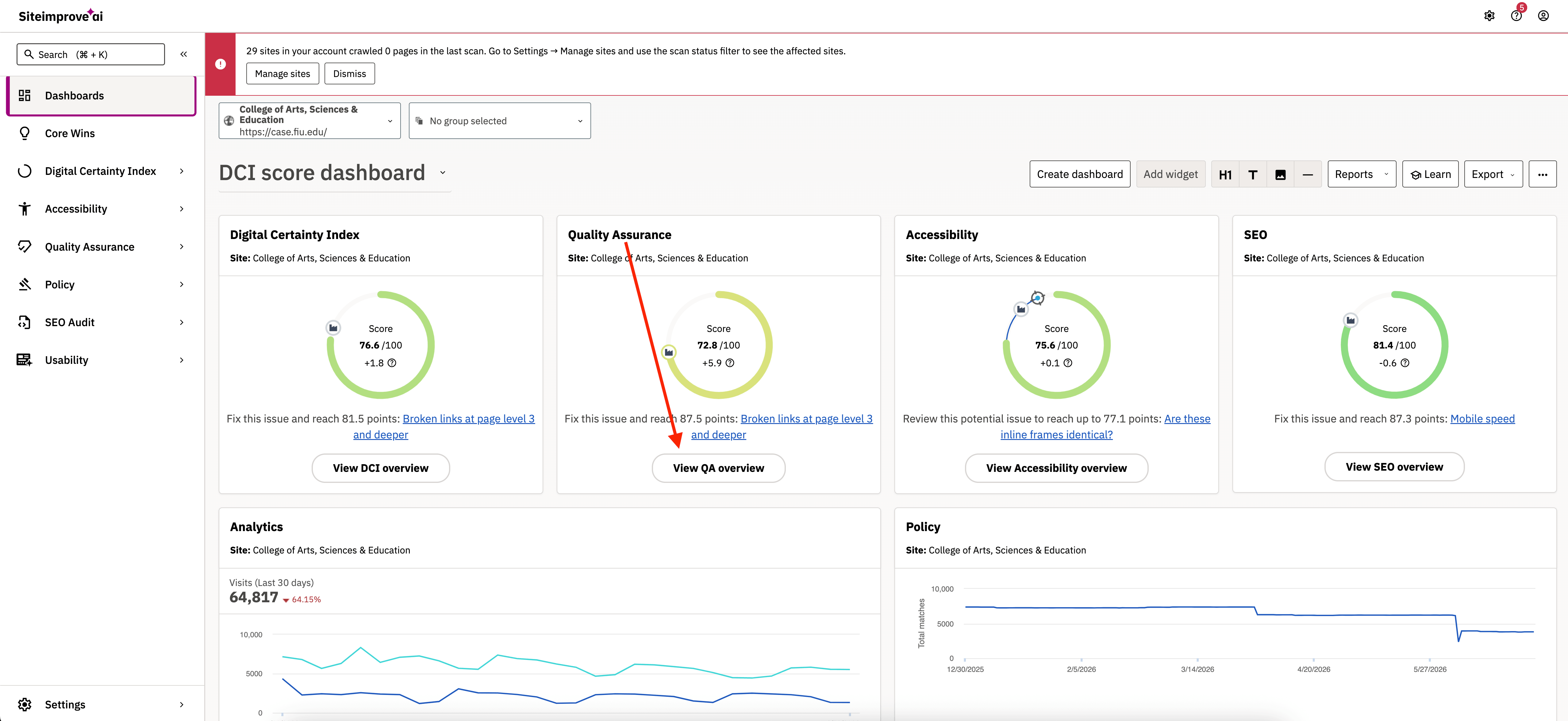
To access the dashboard, click on the button under Quality Assurance labeled View QA overview.
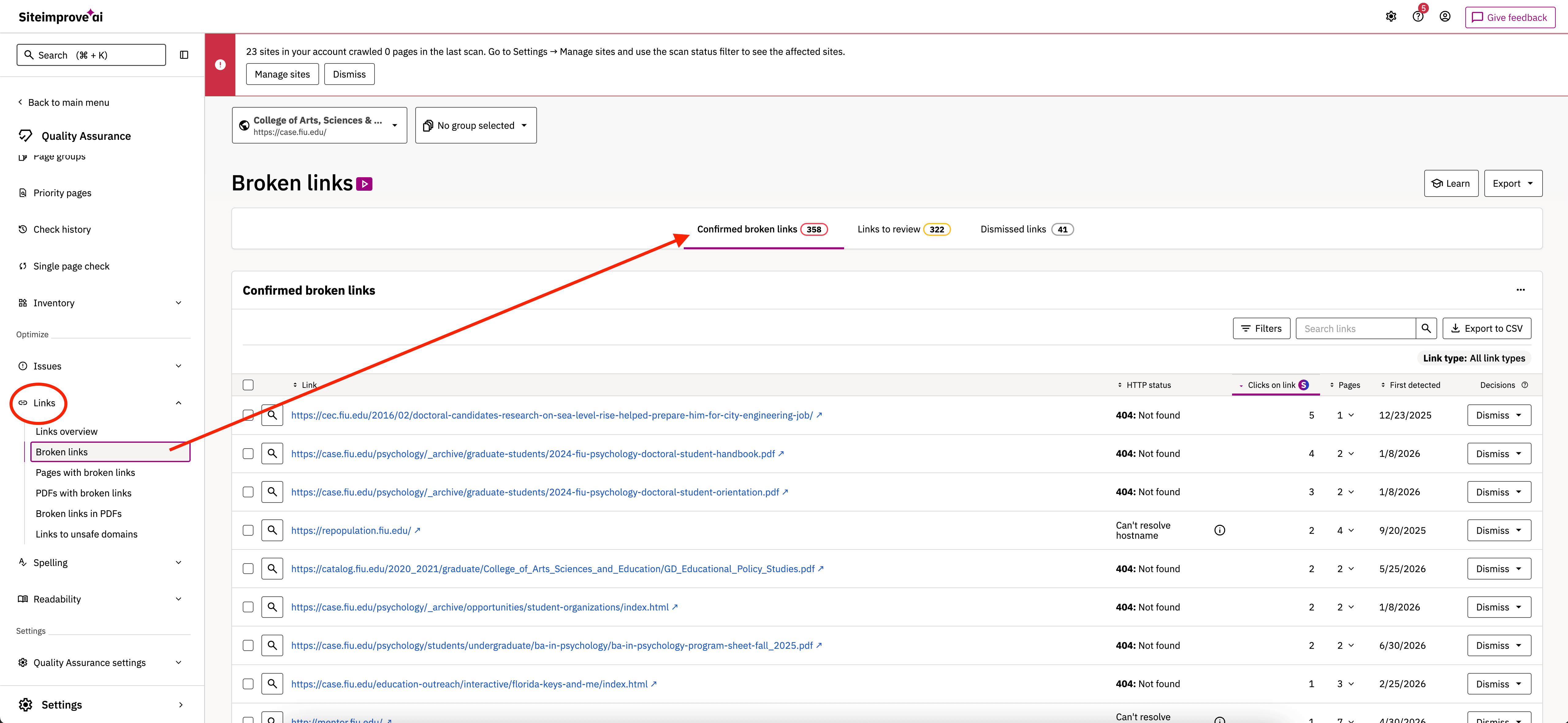
Click Links on the left-hand side to open a list of broken links. The list displays each broken (or potentially broken) link’s URL, HTTP Status (what type of broken link it is), click count, number of pages displaying the link and when Siteimprove first detected it. You’ll see three tabs in the middle, organizing broken links into those that are confirmed to be broken, those that need review and those that have been dismissed as errors.
Confirmed Broken Links
These are links displaying Page Not Found (404) errors or have been reviewed and marked as broken links. Links with a 404 status are always broken and will be picked up by Siteimprove’s automated auditing.
If you come across a broken link, the first thing you should do is see if you can find a new link to replace it. If there is, copy the updated link so you can edit the existing one on Cascade. If there isn’t, go to Cascade to remove the link.
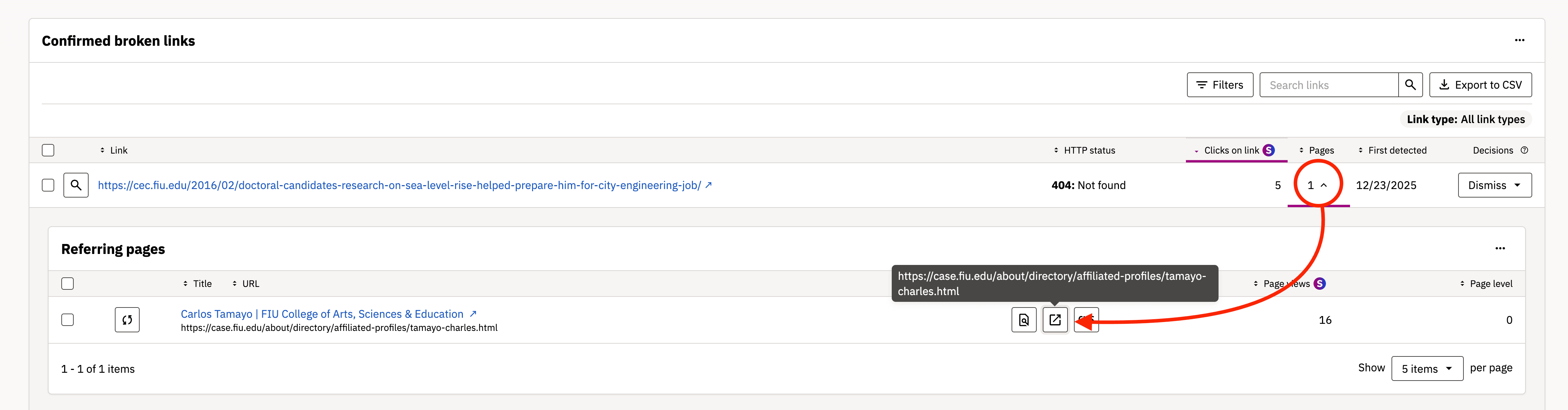
To find the broken link you want to edit, check the Pages column to view how many pages a broken link appears on. Use the dropdown to find the specific pages where the link appears and click the new window ( ) icon.
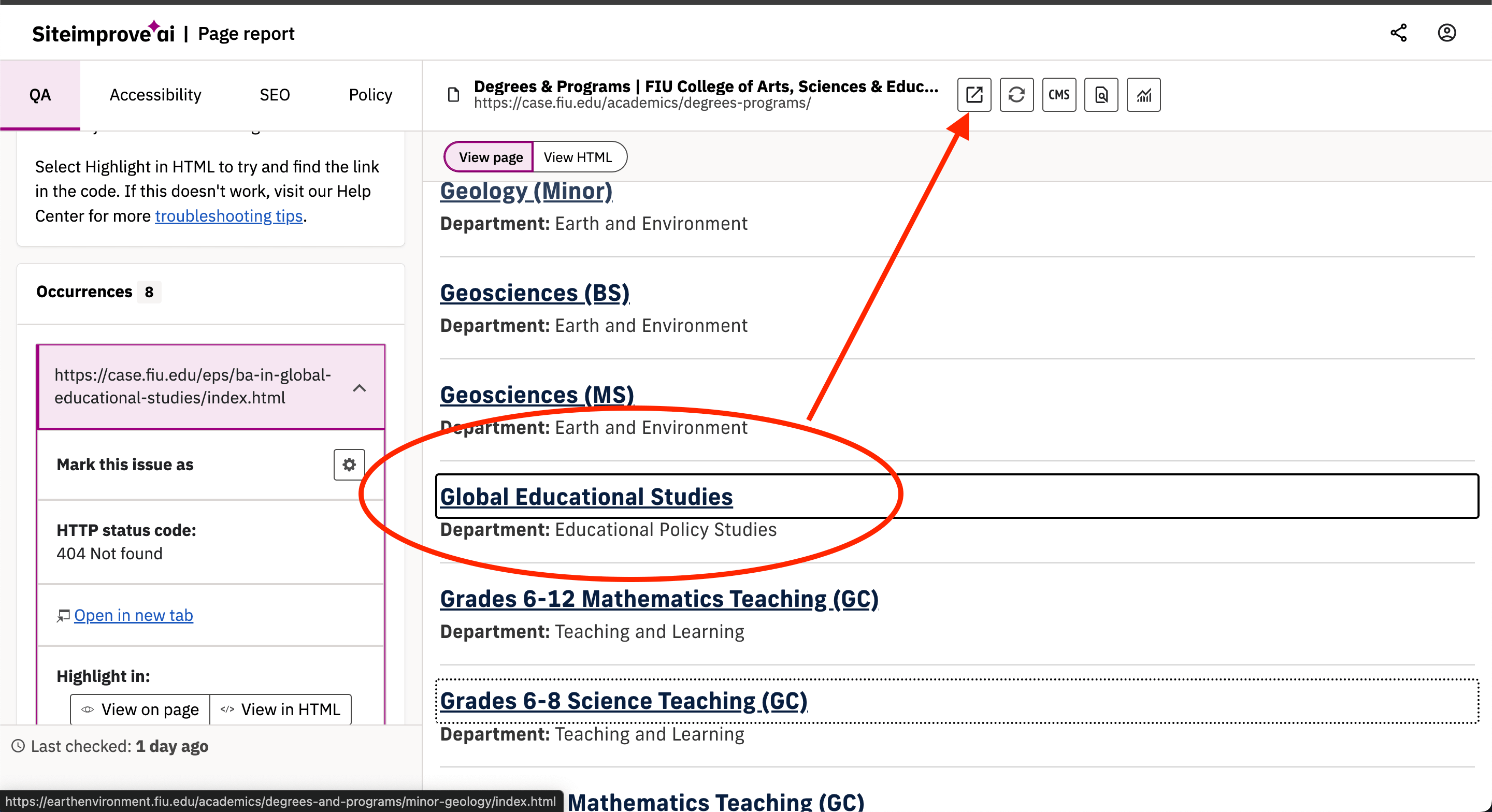
Click on the CMS icon ( ) on the Page Report. This will open the page on Cascade. You can then use the Page Report to find the broken link and edit it as needed. Once you have made your edit, make sure to publish all of the changes. The new or removed link will not be reflected on the live site if you do not do this. Then, click Run Page Check (). Siteimprove may take some time to reflect that the link is fixed or removed depending on the complexity of the website and page. If you did it correctly, it will update and the broken link will be removed from the list of broken links.
Links to Review
If a link gives an error code other than a 404 (Page Not Found), it will be listed in Links to Review. You have to double-check these links to make sure whether they’re actually broken. Sometimes, the links are fully functional, like 403 errors which are given to automated tools (like Siteimprove) but pose no issue for human users.
To check, just click the blue links to see if they’re working. Once you’re sure the link is working or broken, go back to the Siteimprove Broken Links page and look at the two options to the right side of the link you clicked.
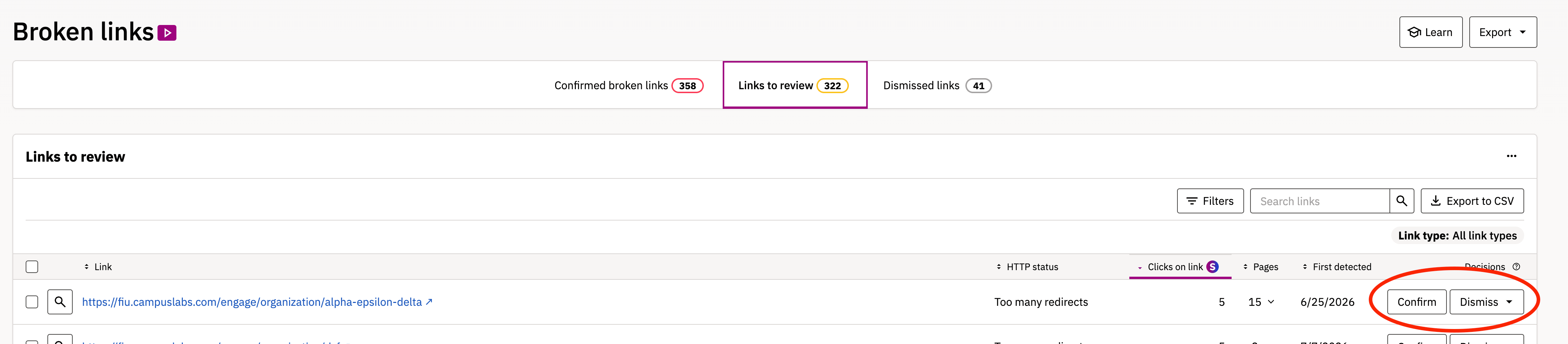 You’ll see two buttons on the right side of the links, Confirm and Dismiss. Clicking Confirm means the link is confirmed broken, which moves it to Confirmed broken links. You can then go fix it like any other broken link.
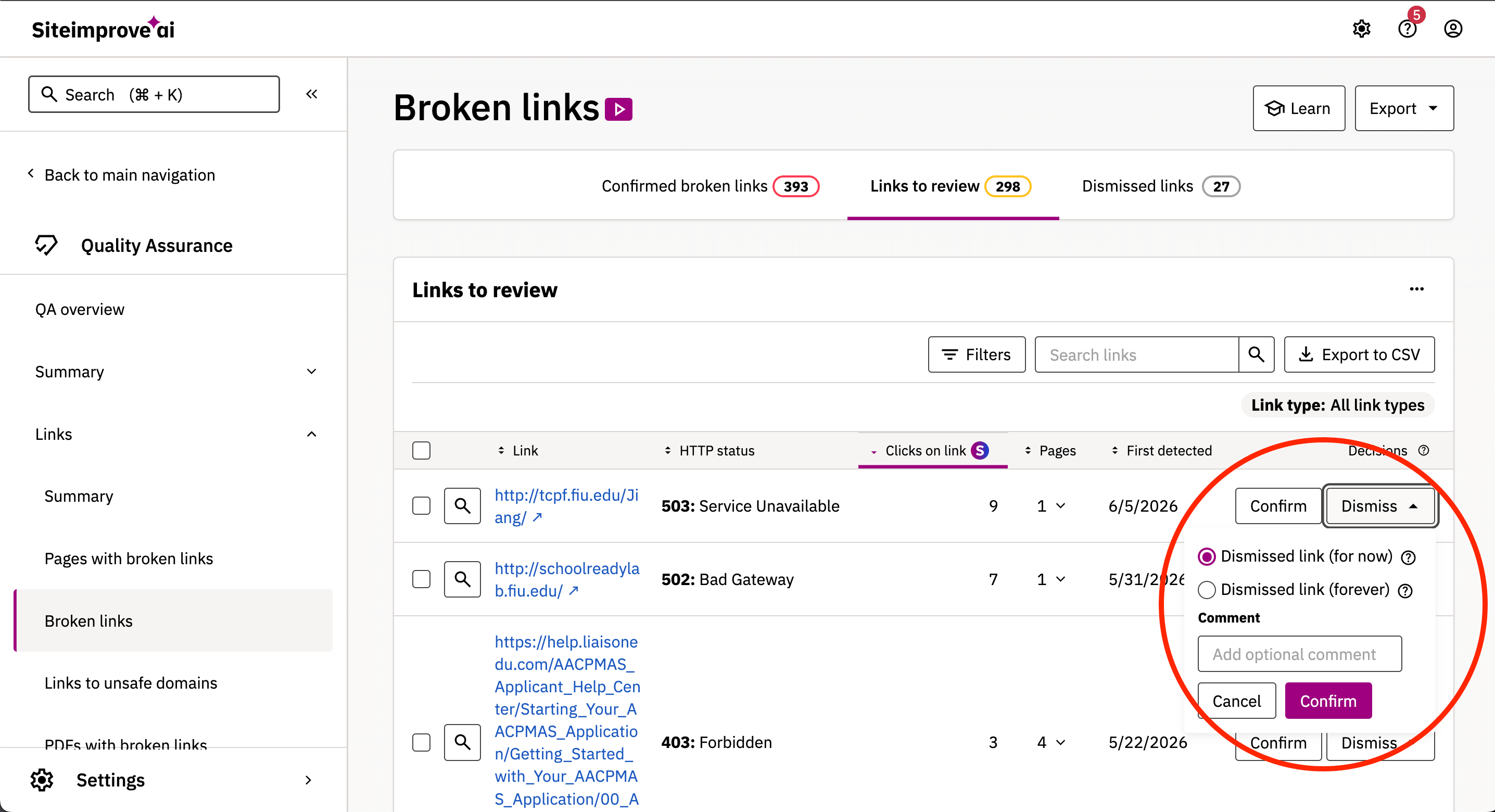
Clicking Dismiss lets Siteimprove know the link is still working. A small pop-up will appear, like the one in the picture above. If you’re dismissing a link as working, be sure to click Dismissed link (for now) and not Dismissed link (forever). Dismissing links for now lets the link continue to be crawled by Siteimprove, which will flag any other error codes that appear in the future. When dismissing, it helps to add a comment like “Working as of (date month/day/year)” to make it easier for other members of your team to when and why it was dismissed.
Dismissed Links
Links you dismiss will be moved to Dismissed links.
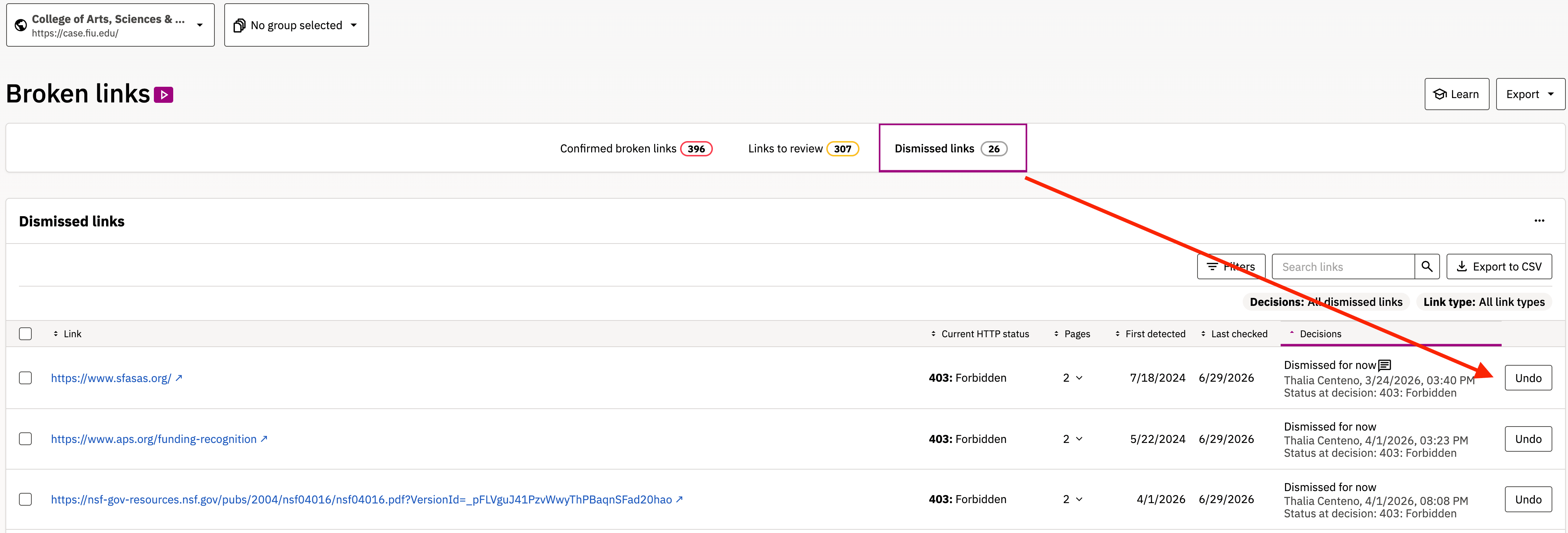
Links you dismiss will be moved to Dismissed links. If you dismiss a link on accident, you can click Undo to send it back to the Links to review list. You can also dismiss links from the Confirmed broken links list. This is the same process as the Links to review tab. It’s good to keep this in mind if you ever accidentally confirm a link as broken.
What's Next
Please do not hesitate to reach out to Digital Communications via digimaint@fiu.edu if you are having issues resolving a broken link, especially those on multiple pages.