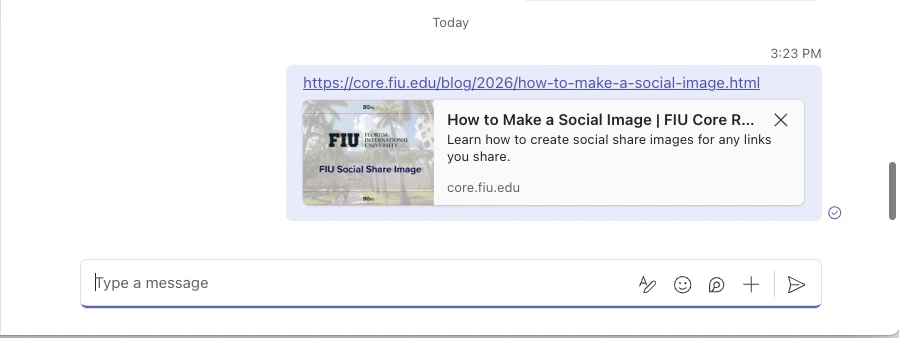
Social images give readers and viewers a sneak peek at what they can expect when they click on a shared link.
Social images should be set manually for each web page you expect to be linked often, with the correct size and design to ensure proper display. Keep in mind that if an image is not properly set, the link preview may automatically display a random image from your page.
Step 1: Create a New File Using the Correct Size and Format
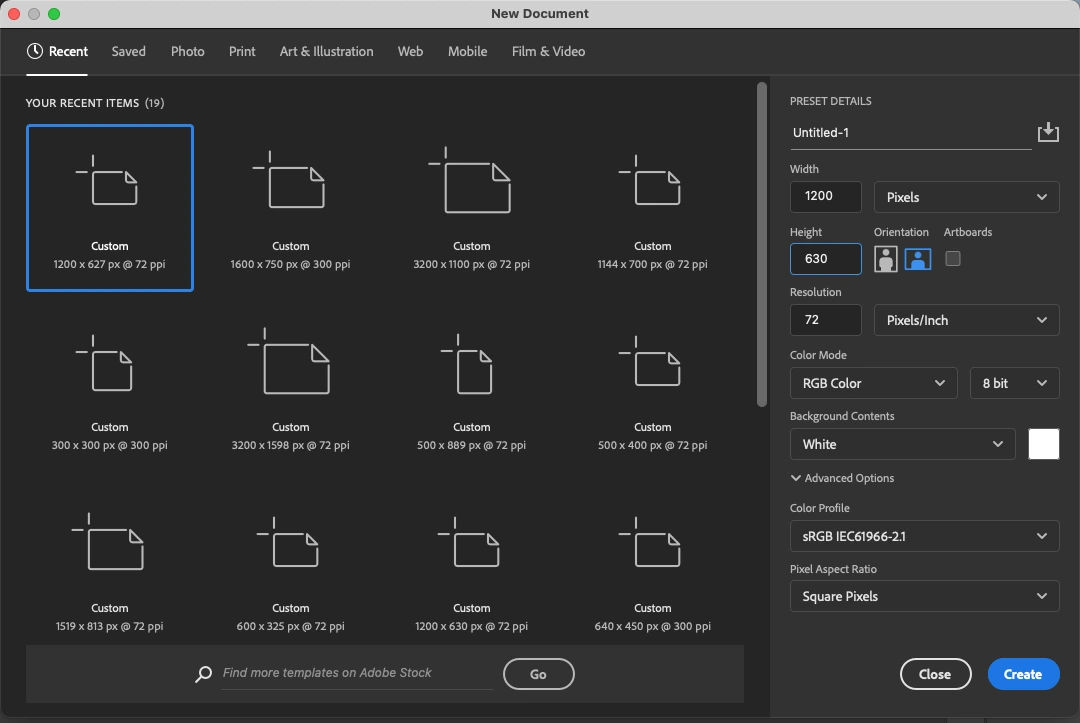
Open your design software (Figma, Photoshop, Illustrator, Canva, etc.). We'll be using PhotoShop for these examples.
- Set the canvas size to 1200 × 630 pixels.
- Use RGB color mode.
- Set the resolution to 72 ppi, which is the standard for web viewing.
Step 2: Establish Safe Margins
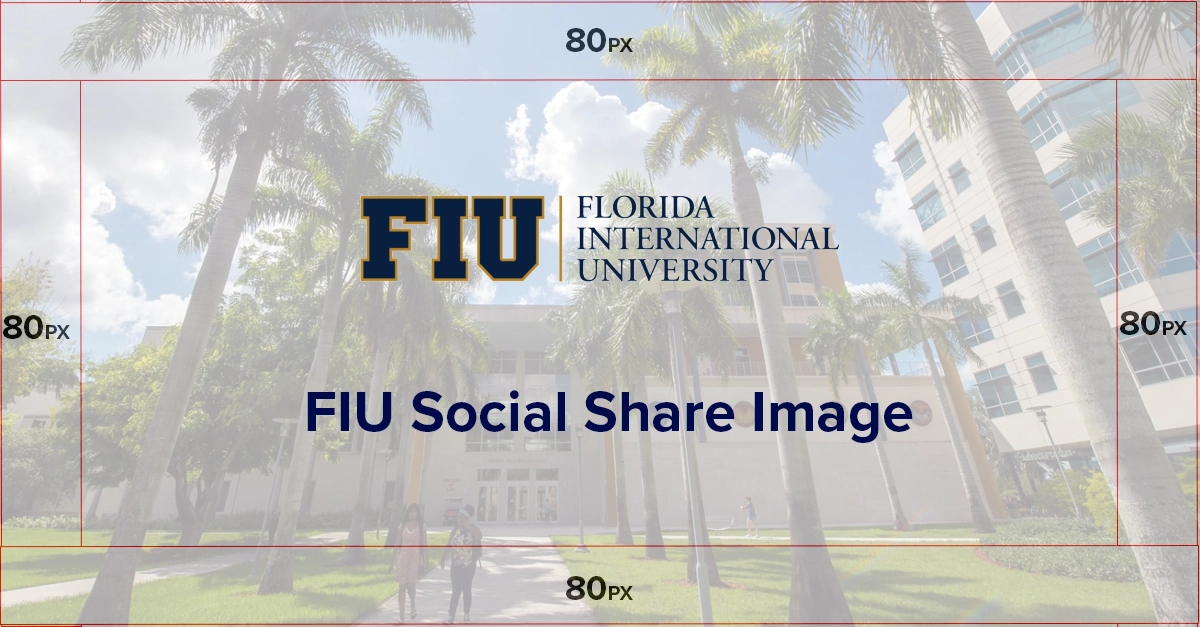
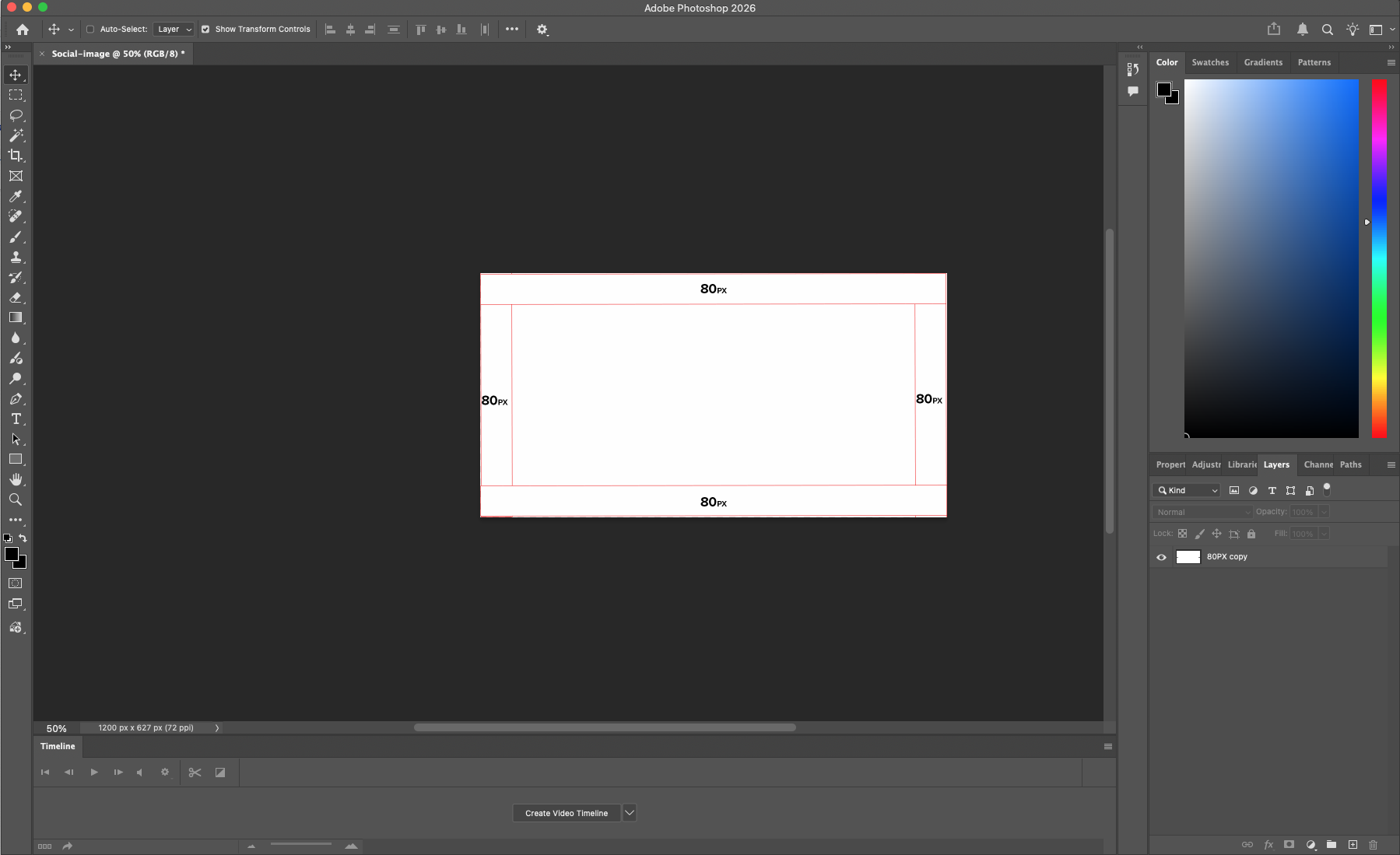
- Add margin space of at least 80 pixels on all sides.
- Keep all important content (logo, title, key visuals) inside this safe zone.
Step 3: Add Florida International University Branding
Always follow the FIU Brand Style Guide.
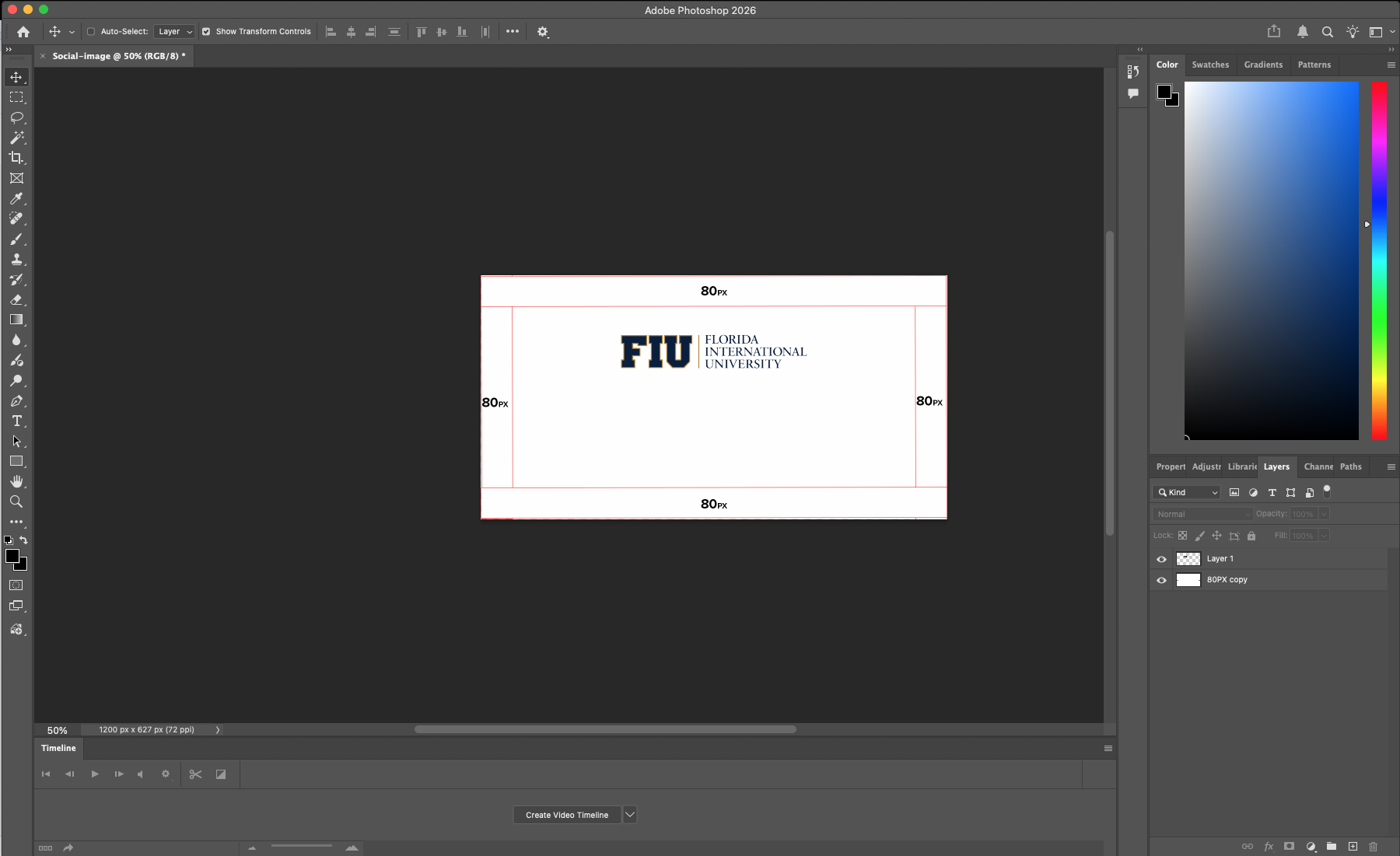
- Use the correct logo for your specific division, school, or team.
- Typically, best practice is to center the logo at the top or bottom of your design.
- Do not alter, stretch, or modify the logo in any way.
Step 4: Add Background Visuals and Text
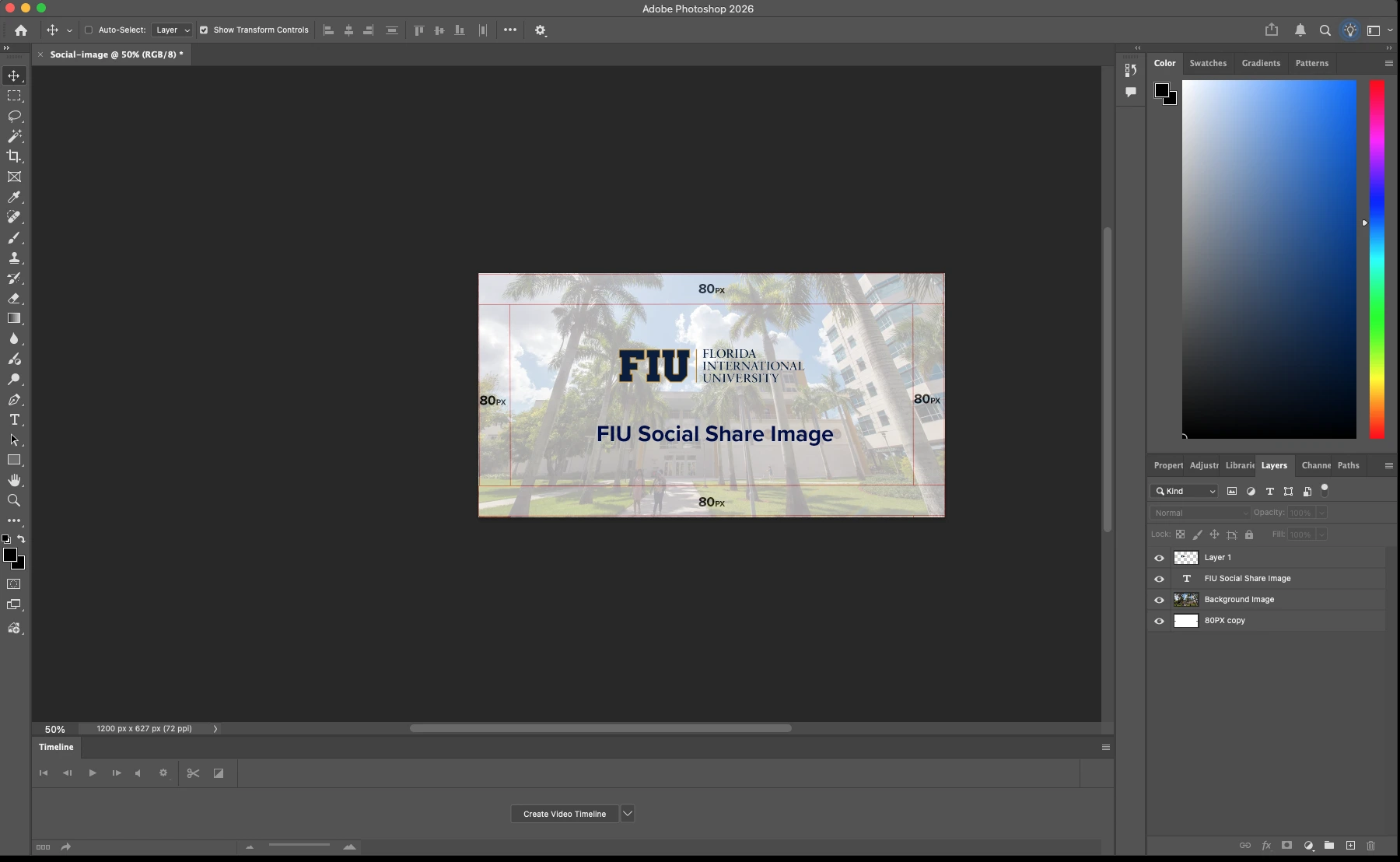
- Use clean, relevant background visuals.
- Make the text large, concise and limited in word count.
- Ensure strong contrast between the text and background for readability and compliance with accessibility standards.
Step 5: Export and Upload
- Export the file as a JPG.
- Upload the image to appropriate webpage.
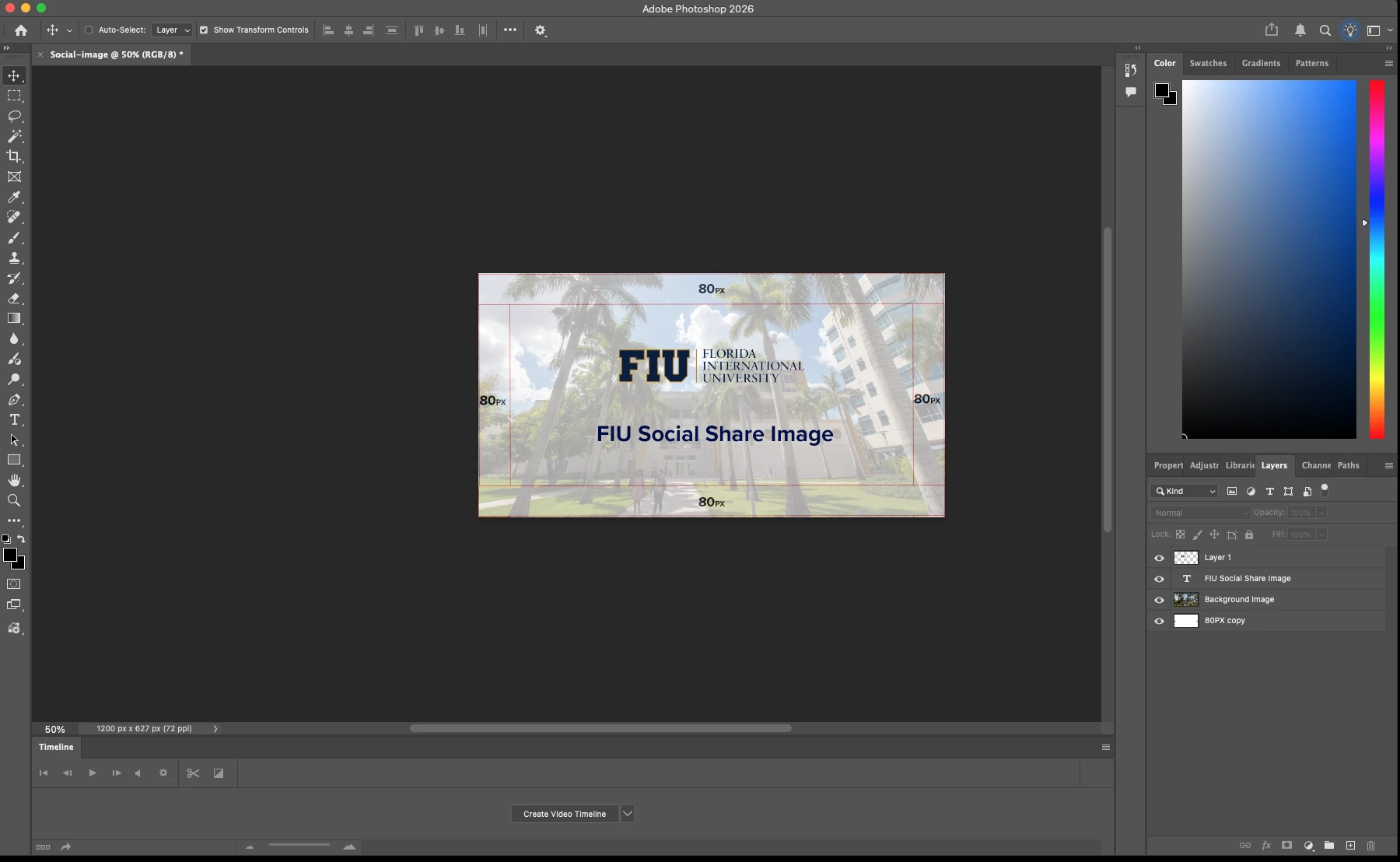
And you are done!
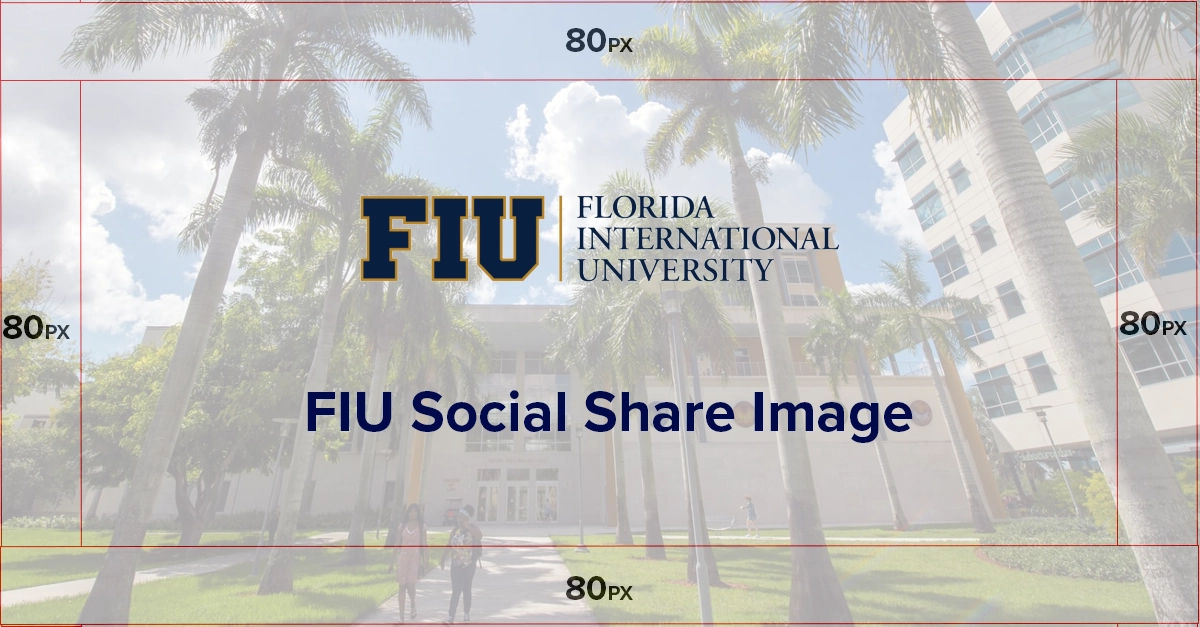
If everything was set up correctly, this is what the social share image should look like.