

There are several reasons you might add a video to your website or webpage. Videos can help grab visitors’ attention and make your content easier to read by breaking up long sections of text. Adding a video to your site or page in Cascade is a simple process.
It’s important to know that videos are not stored in Cascade itself. Instead, you will embed the video within the WYSIWYG editor or content box. We recommend using YouTube because it’s the most popular video platform and also makes embedding videos easy.
Finding a YouTube video’s embed code
1. Start by finding the YouTube video you want to use. Click the Share button below the video.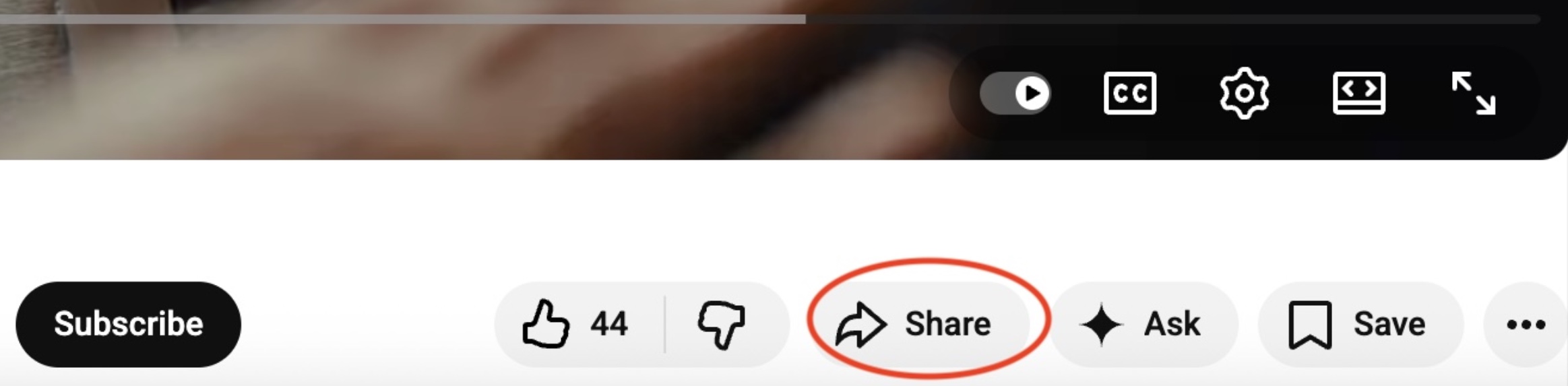
2. This will open a new window with several sharing options. Next, click the Embed option.
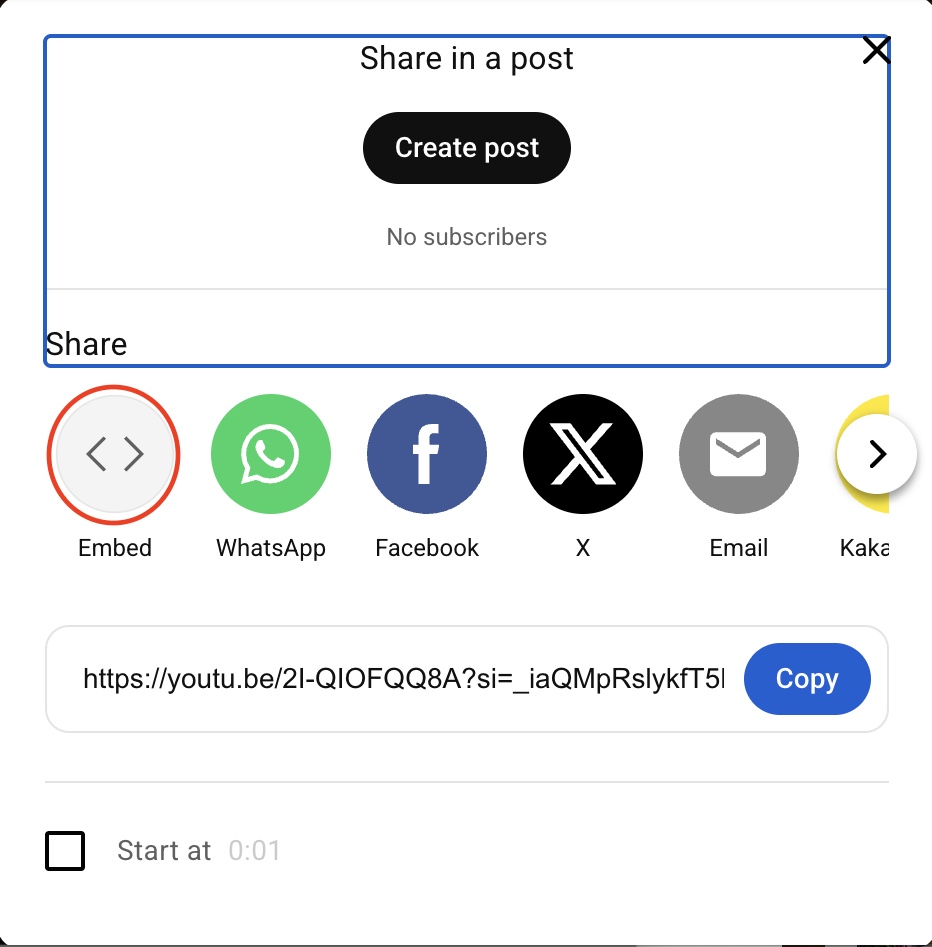
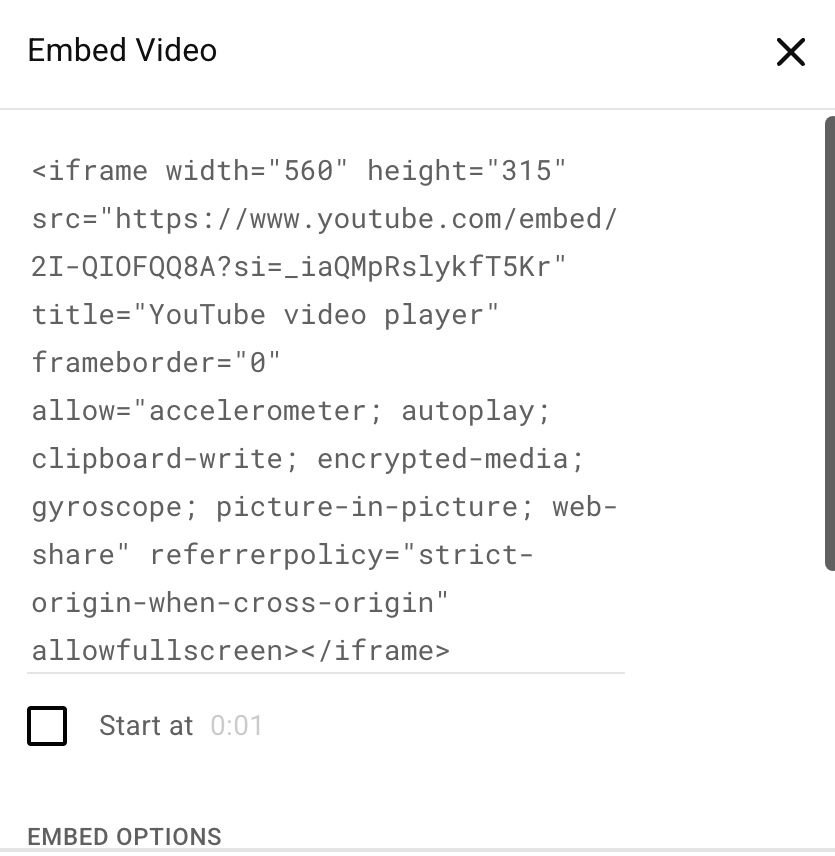
3. You will then see a box that contains the video’s embed code. Click Copy to copy the code.
Adding an embed code in Cascade
You can add videos anywhere you have a WYSIWYG editor.

2. In the Insert/edit media window, click the Embed tab and paste the video’s embed code.
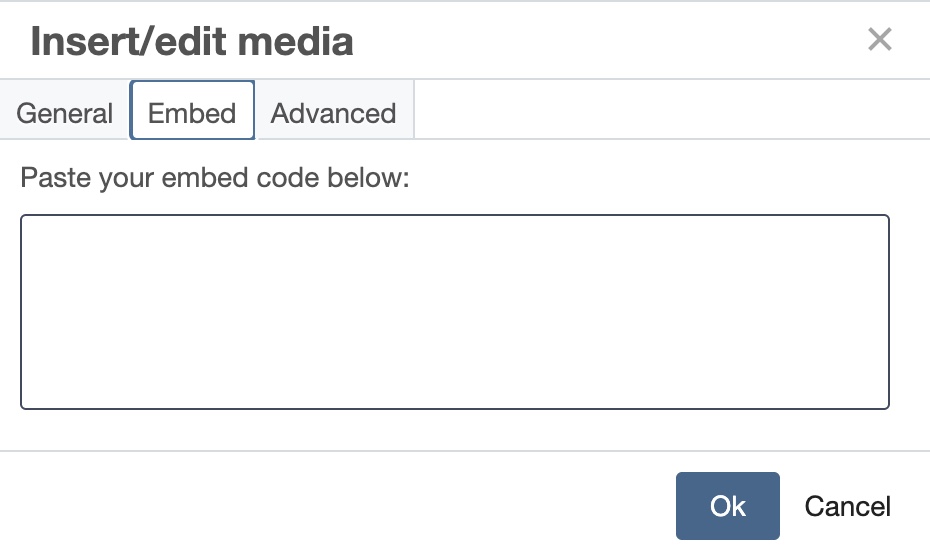
3. Before clicking Ok, add the
<div class="flex-video widescreen"> element before the embed code and </div> after the embed code and the attribute loading="lazy" within the video’s iframe element, then click OK.
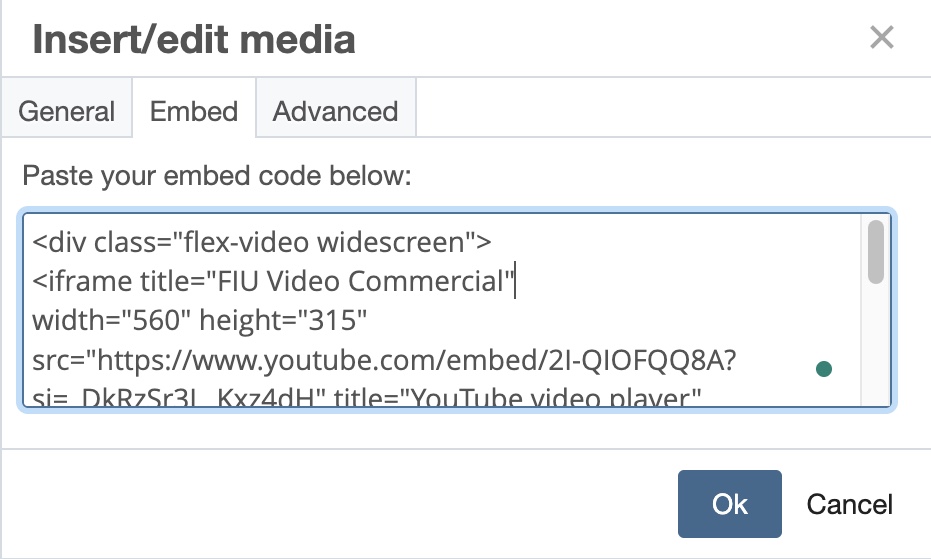
A complete video embed code should look like this:
	    <div class="flex-video widescreen">


     <iframe


         title="Video FIU commercial"


         width="560"


         height="315"


         src="https://www.youtube.com/embed/O6DBjrWDZr4"


         allowfullscreen


         loading="lazy">


     </iframe>


		</div>
Making videos accessible
When you embed a video, there are a few key accessibility steps to keep in mind. Make sure the video snippet includes a title="" attribute. Usually, the video’s own title works fine, but if it’s something generic, give it a more descriptive name.
If the video has sound, it needs captions. There are different caption options available, and the goal is simple: Everyone should be able to understand and enjoy the video.