
It's common practice to copy over your content from a Word document or a PDF when creating a page in Cascade. But as we've written about before, unless the document is itself properly formatted, you'll likely run into some issues. The editor will carry over the formatting from the original document, with the result looking like a mess of different fonts and extra tags.
We all want to avoid having to painstakingly reformat content, having to go line by line and deleting extra <span> in the code. To avoid this, there are a few methods you can use to save yourself some time by copying it over without formatting
Keyboard Shortcut
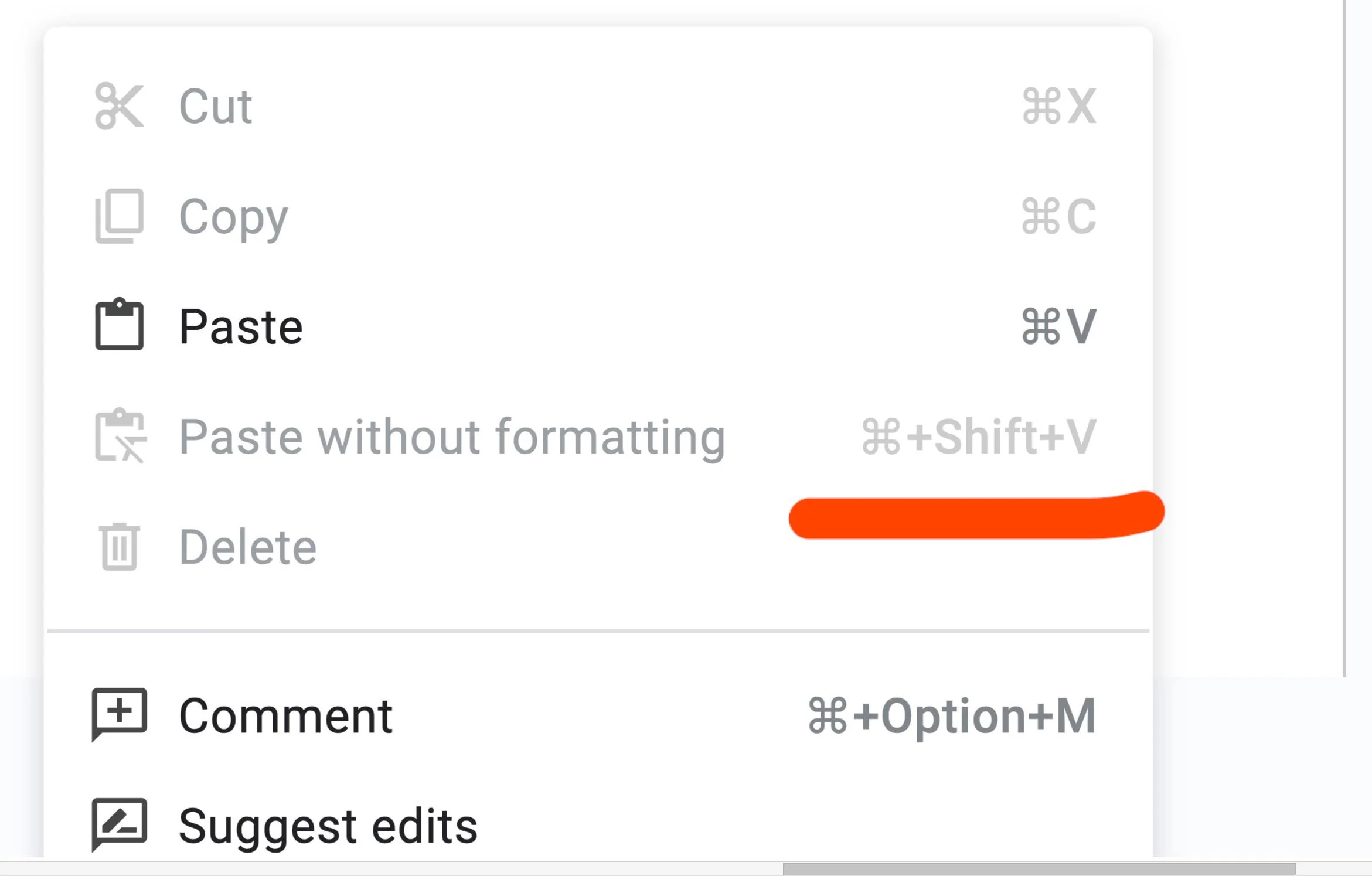
One of the quickest methods is to use a simple keyboard. Instead of using the typical Cmd/Ctrl+V to paste the content, use instead Cmd/Ctrl+Shift+V. This instructs the software to paste without formatting, leaving the content as plain text. Now your content exists in a simple format within Cascade!
Clear Formatting
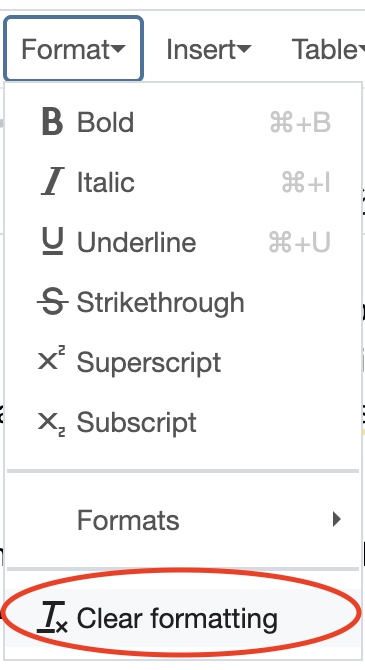
Another method, though not as quick, is to copy over the text normally and then use the Clear Formatting option. Once the text is copied over, highlight the text and then click Format at the top of the content box. At the bottom of the drop-down menu, you'll see the option for Clear Formatting.
While we recommend using the keyboard shortcut as the quickest method, both have the intended results. These will ensure you avoid copying over the complicated formatting you might encounter within a Microsoft Word Document or Google Docs.