
When working on edits to a live website, one of the most stressful parts of the process is making sure your updates don't go live before you want them to.
There are several functions available to you to prevent these unexpected surprises.
Check-out/Lock function
Cascade's Check-out/Lock function allows you to create a shareable working copy of your page. That working copy has several benefits over the typical edit/draft workflow:
- Working copies are shareable and transferable within Cascade
- Lock prevents parallel drafts from being created
- Your live version remains publishable
Preview vs. Submit using the Check-out function
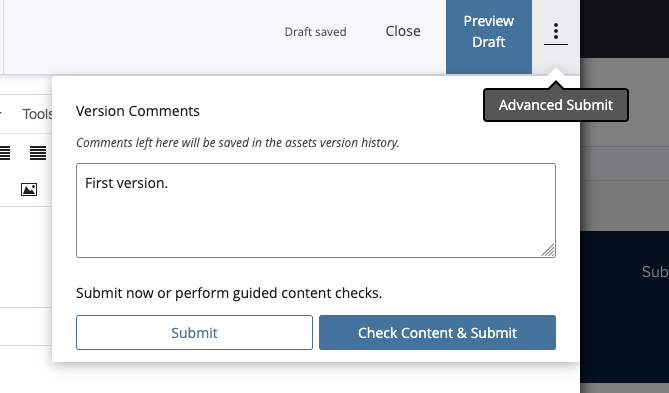
Preview Draft will update your working copy thereby keeping you within the Check-out function.

Using the Advanced Submit option (found within the three vertical dots of the edit window) is the same as selecting Commit Changes from the Working Copy view. Submitting or committing changes will convert the working copy into a new version. This checks-in the content and breaks the lock.
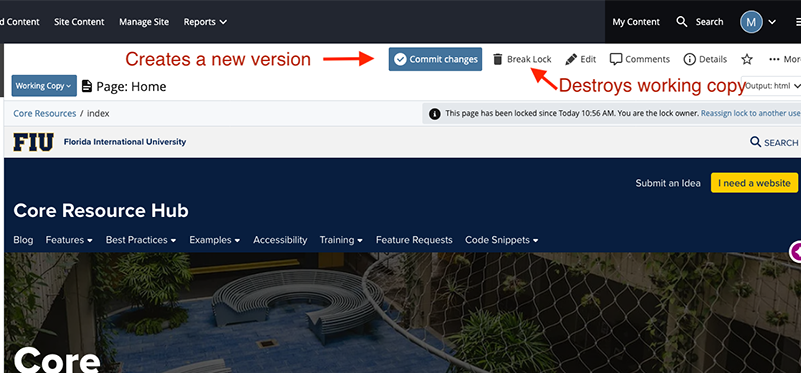
You can delete your working copy by selecting Break Lock in the Working Copy view.
You can assign a working copy to another user by selecting Reassign lock to another user from the Working Copy view.

If the original owner is unavailable, an admin can reassign the lock to another user.
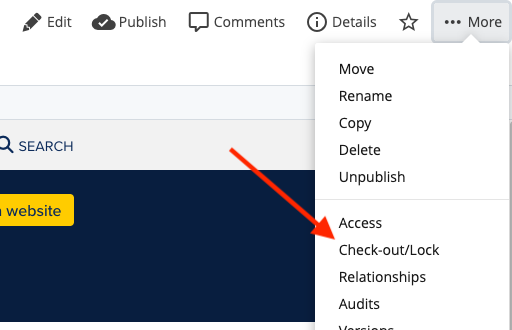
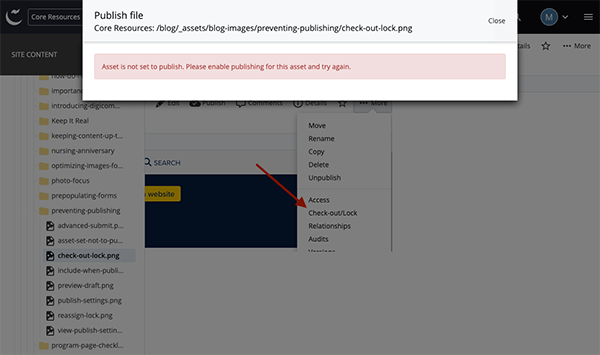
To access the Check-out/Lock feature, right click the asset in Cascade's Site Content menu and select More > Check-out/Lock or navigate to the page in Cascade, click the More option in the top-right corner and select Check-out/Lock.
Disable 'Include when publishing'
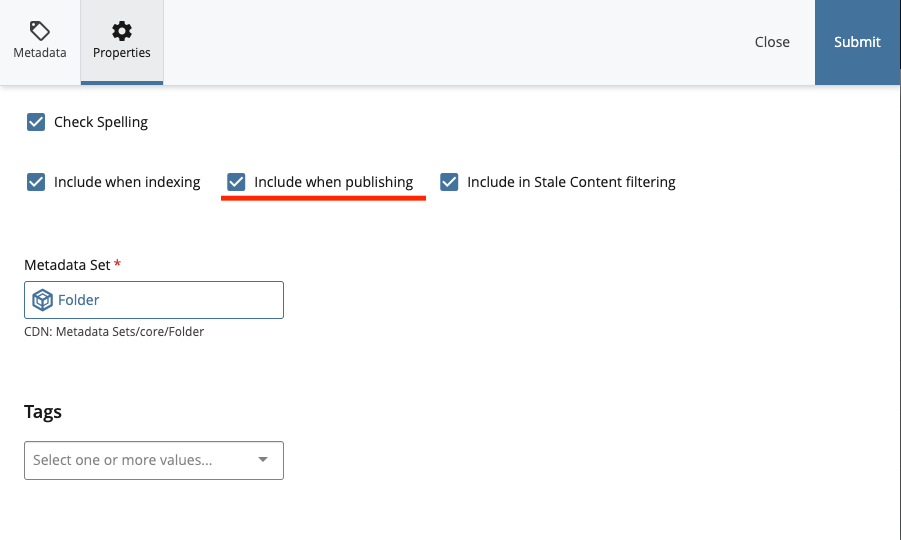
All publishable assets in Cascade have a checkbox option Include when publishing. This option's default state is to be checked (enabled), which means the asset is publishable. If the option is unchecked (disabled) it will be skipped when other assets on the site are published.
If you're looking to make massive changes across a page, disabling publishing will give you the peace of mind that your edits won't go live until you re-enable the setting.
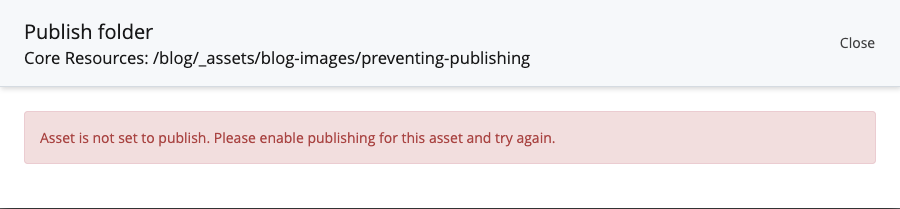
It also has the added benefit that you can set this at the folder level, which is what we recommend. For example, if you're working on your entire About section, you can disable Include when publishing on the About folder rather than the page.
The biggest drawback of disabling publishing is that your page won't continue to republish the live version of the page while you work. So, if you have a news or events feed on your About page, it won't update until you re-enable publishing.
Disabling publishing doesn't just disable publishing to Production, either. It also prevents you from publishing to Staging. If you want to publish just to staging, you can re-enable publishing, publish just to staging, and then disable publishing again.
Publish just to Staging
Every website in Cascade has both a production version—for us that would be core.fiu.edu—and a staging version. Staging URLs are non-public URLs where you can tests your changes before making them live. If you aren't sure what your Staging URL is, reach out to DigiComm at digimaint@fiu.edu.
Publishing only to Staging requires giving, perhaps, a bit more attention to the publishing process than you normally would. Admittedly, the publishing process can slide into muscle memory, and it's easy to miss the option to only publish to Staging.
Once you're ready to send your asset to Staging, initiate the publish process by clicking the Publish button or right-clicking the asset and hitting Publish.
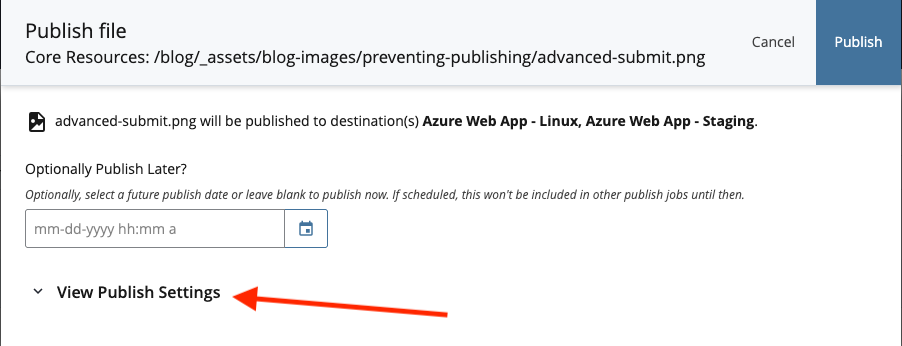
The next panel will be the Publish Settings. Unfortunately, sometimes the destination (Production, Staging, etc.) can be hidden within an accordion. If you're not seeing the destinations, click View Publish Settings.
If you are seeing the destinations, they'll be listed as something like:
- Azure Web App - Linux (AKA Production)
- Azure Web App - Staging (AKA Staging)
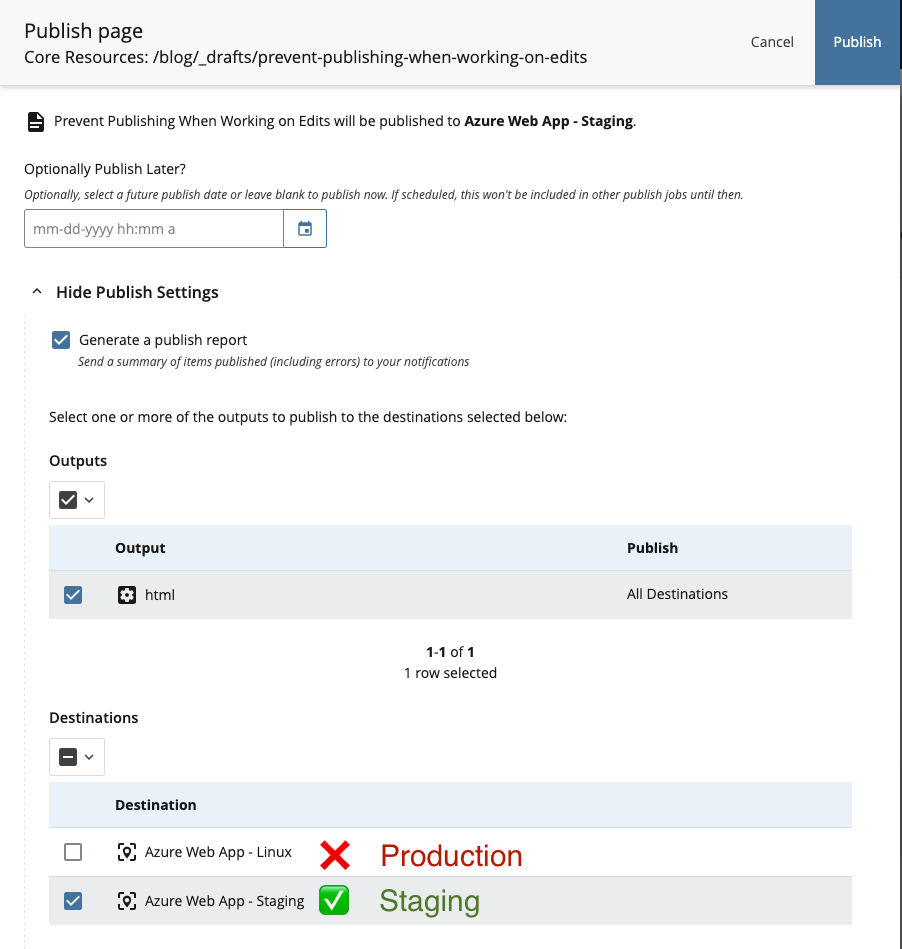
To publish only to staging, uncheck the Production destination and click Publish. Your updates will now appear on your Staging site only.
A warning about leaving content on Staging only
Publishing to Staging does not prevent publishing to Production in the future. If you plan on leaving your staged version up for some time while waiting for approval before making it live, we recommend disabling publishing.
Other Options
There are few other options available to you if you have changes you want to preview, test, and/or share before taking them live.
Disabling entire destinations from publishing
If you're interested in disabling publishing to Production for your entire website while you work through some updates, reach out to DigiComm at digimaint@fiu.edu.
Duplicating a page
You can duplicate a page to create a parallel version of your live page, but we do not recommend it. The chances of duplicate pages being published, incorrect URLs or filenames and other complications make this option more cumbersome than some of the other listed options.
Creating a staging site
If your unit or website is undergoing a massive change, we recommend starting a project with DigiComm to set up a parallel website that would, once approved, replace your current website. This website would only exist in a staging environment until it is published to the live site via DigiComm's go-live process.
Cascade Workflows
Cascade Workflows allow editors to submit changes for approval. Approvers receive notifications of content awaiting approval. Approvers are responsible for reviewing, approving and publishing the changes.
Workflows can be extended to multiple functions across the system including creating assets. If you are interested in integrating Cascade Workflows into your process, reach out to DigiComm at digimaint@fiu.edu.