
- From PowerPoints to PDFs, your website documents must be accessible.
- Creating an accessible document from the start is easier than to correcting one with errors.
Word Documents, PowerPoints and PDFs
We’ve said it before: Providing a webpage in lieu of a PDF is typically more accessible. But sometimes that’s not feasible, so ensuring your PDF is accessible before posting is a must.
SiteImprove’s PDF validator can help you identify which documents need fixing before you upload them to your website. However, there are tools to ensure issues like images without alternative text, missing headings and contrasting colors are corrected before you save your document.
All Microsoft Office applications and Adobe Acrobat Pro have accessibility checkers, so documents start off accessible. Creating content with accessibility in mind from the start is much easier than fixing issues later.
How do I access Microsoft Office accessibility tools?
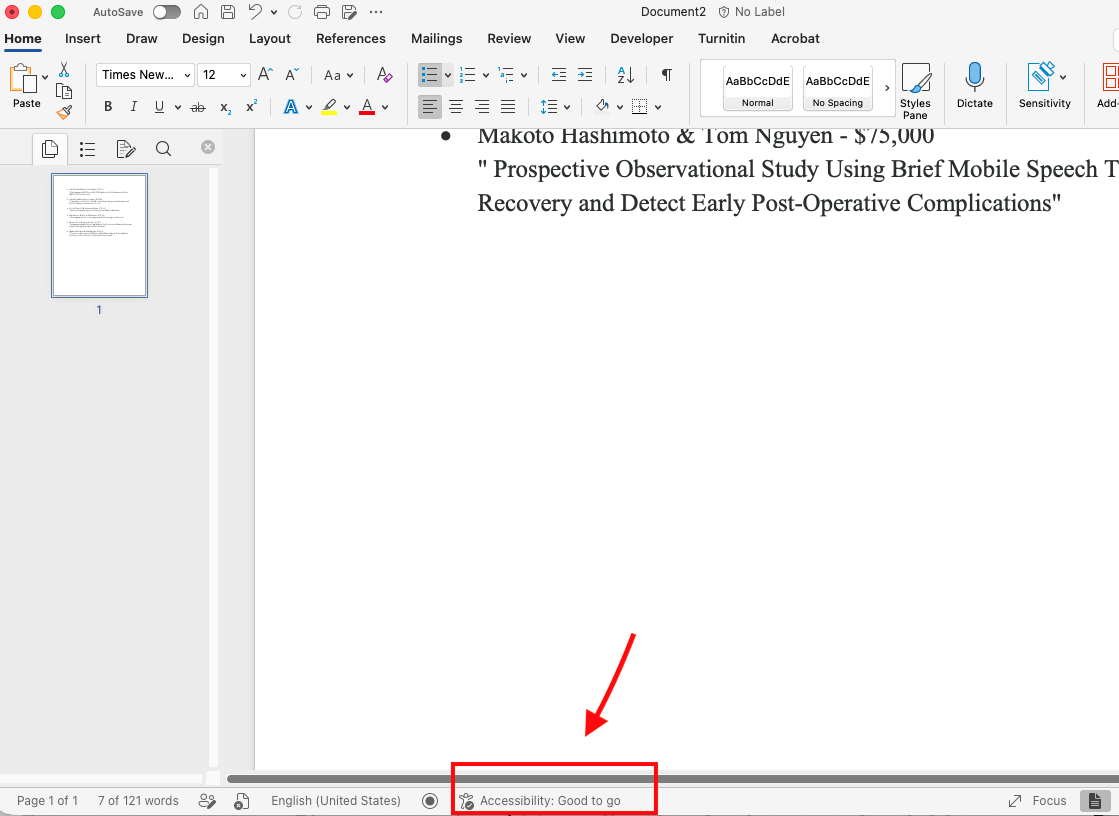
In the desktop version of Microsoft Office, you can find the accessibility tools in the bottom-left corner of the program once you open a new document.
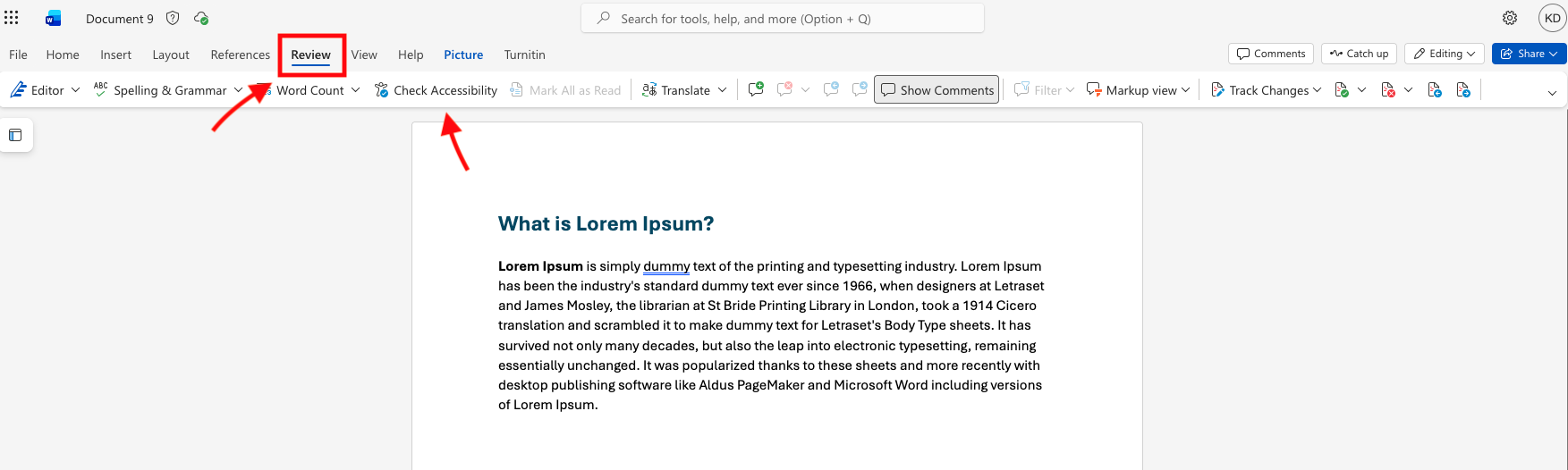
In the online version of Microsoft Office, you'll go to the Review menu item.
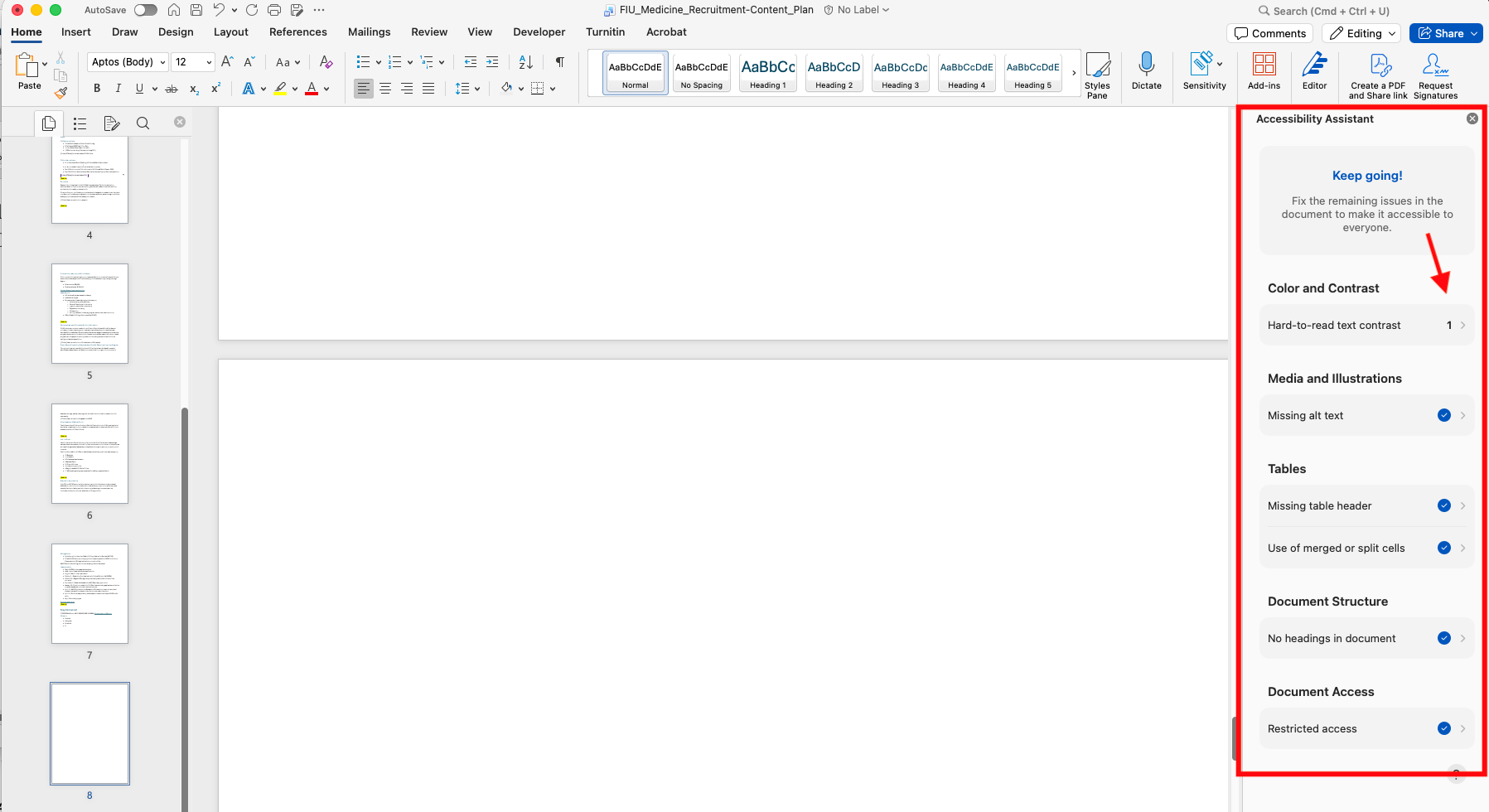
As shown above, your document's status is represented by the accessibility icon .
If there are no accessibility issues, it will read "Accessibility: Good to go." For the online version, you can click "Check Accessibility" to review your document. If there are issues in your document, the accessibility status will say "Investigate."
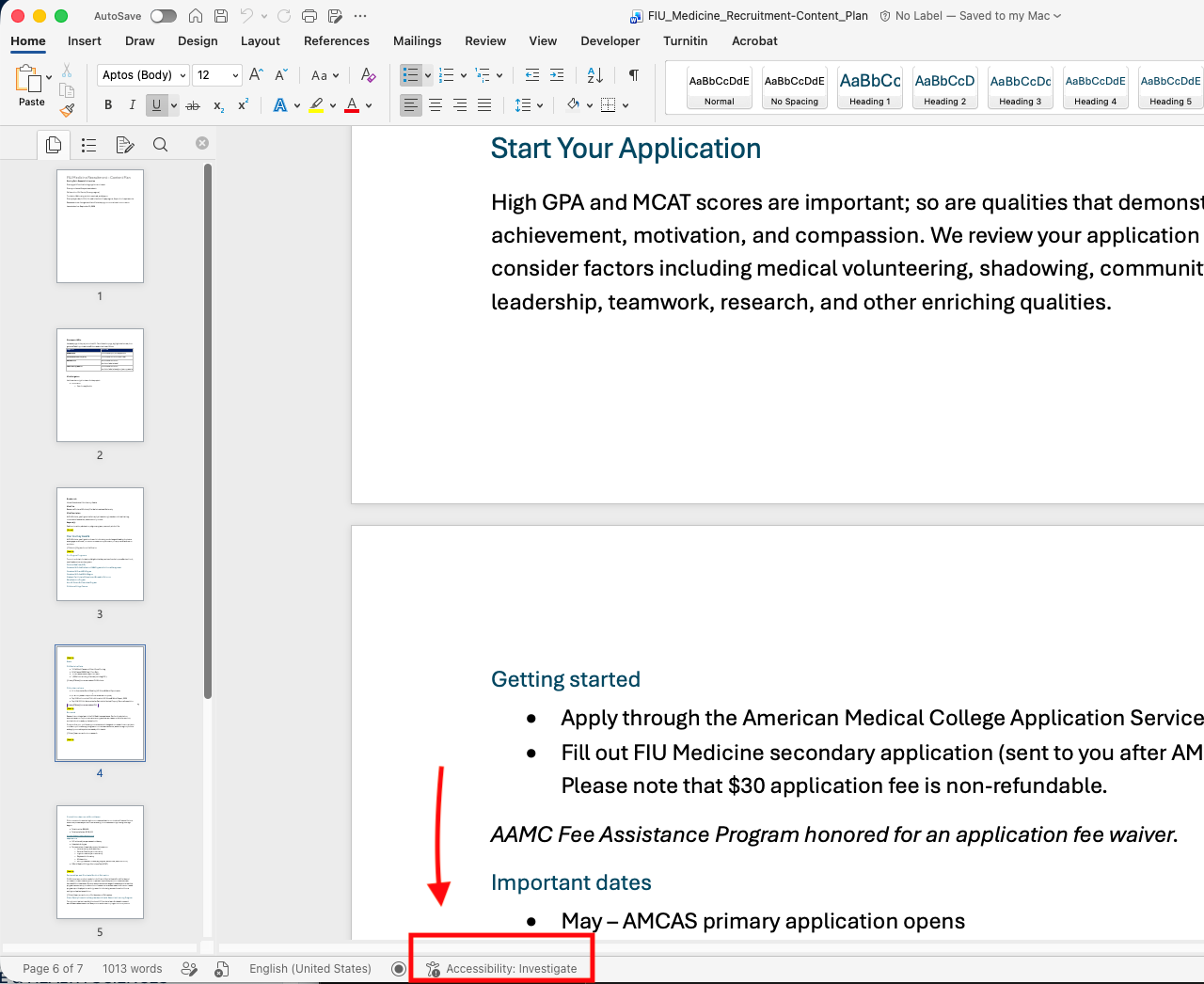
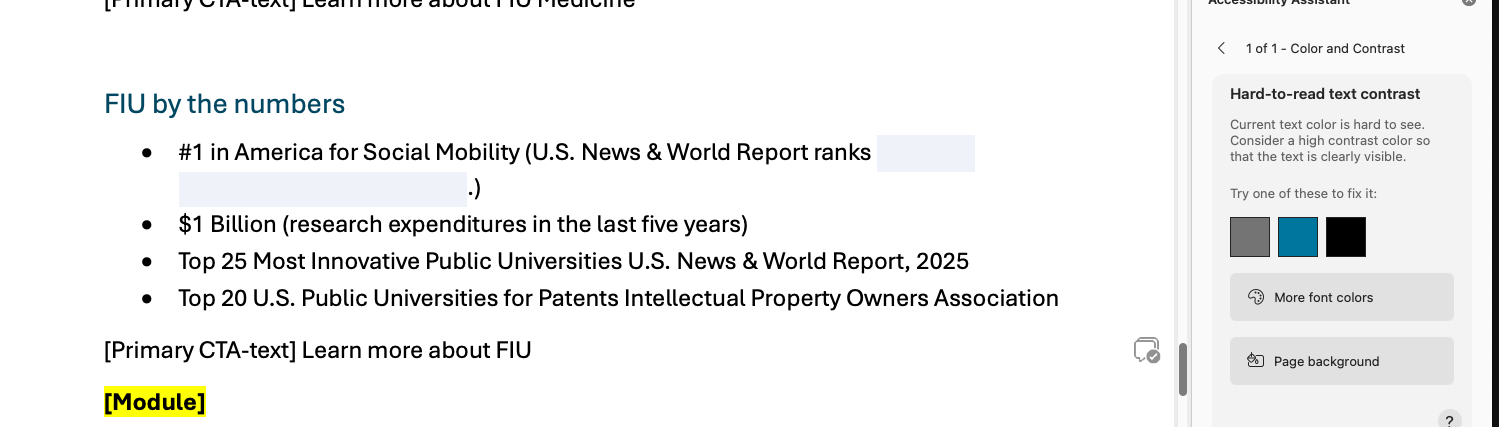
As the image above shows, Microsoft will tell you exactly which elements in your Word document or PowerPoint presentation are causing accessibility issues. Once it identifies the errors, you can go point by point and correct them.
How do I access Adobe Acrobat Pro accessibility tools?
If you’re creating a document that will appear on the web in Adobe Acrobat, there are similar tools within the program to help you make it accessible.
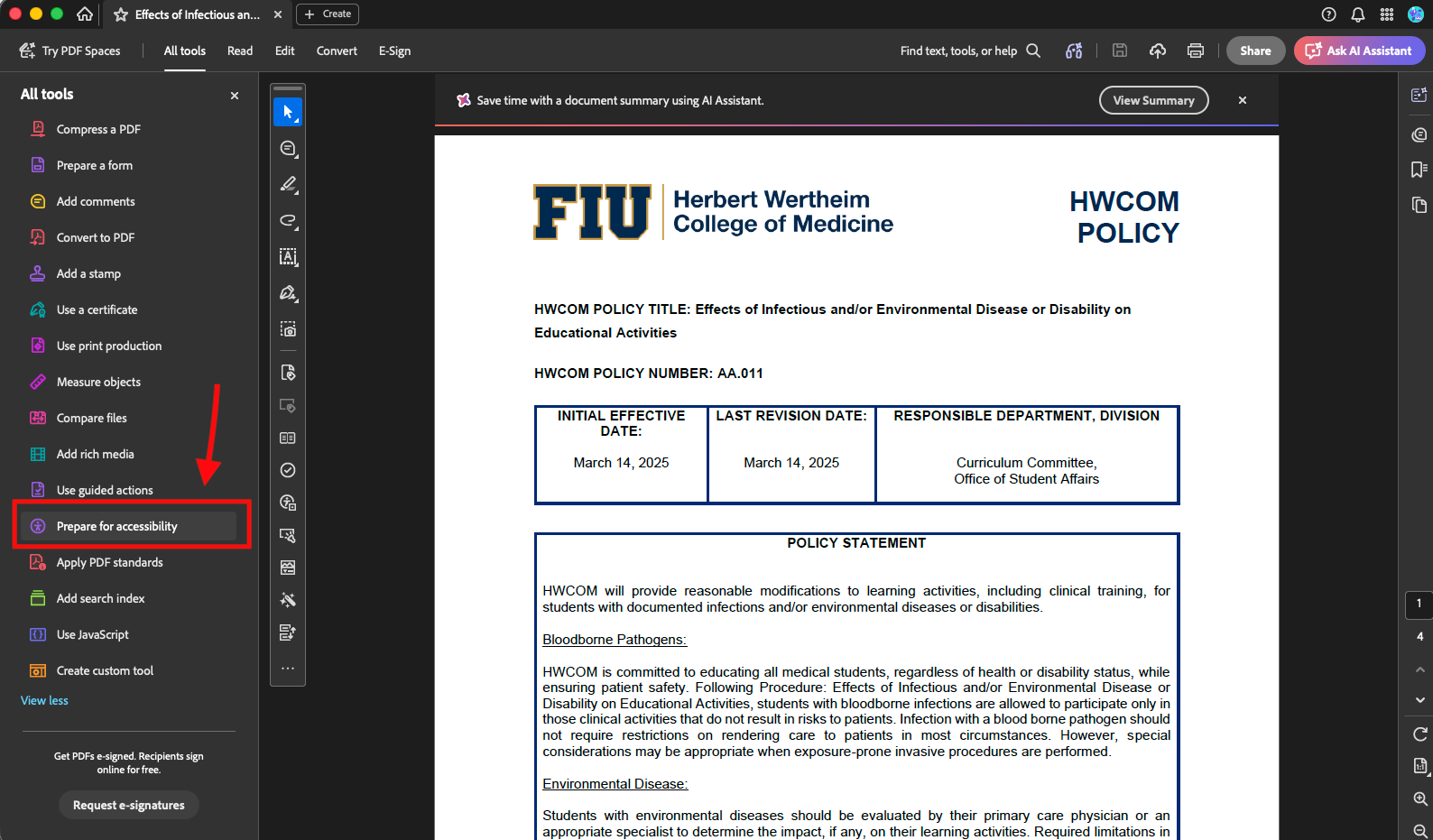
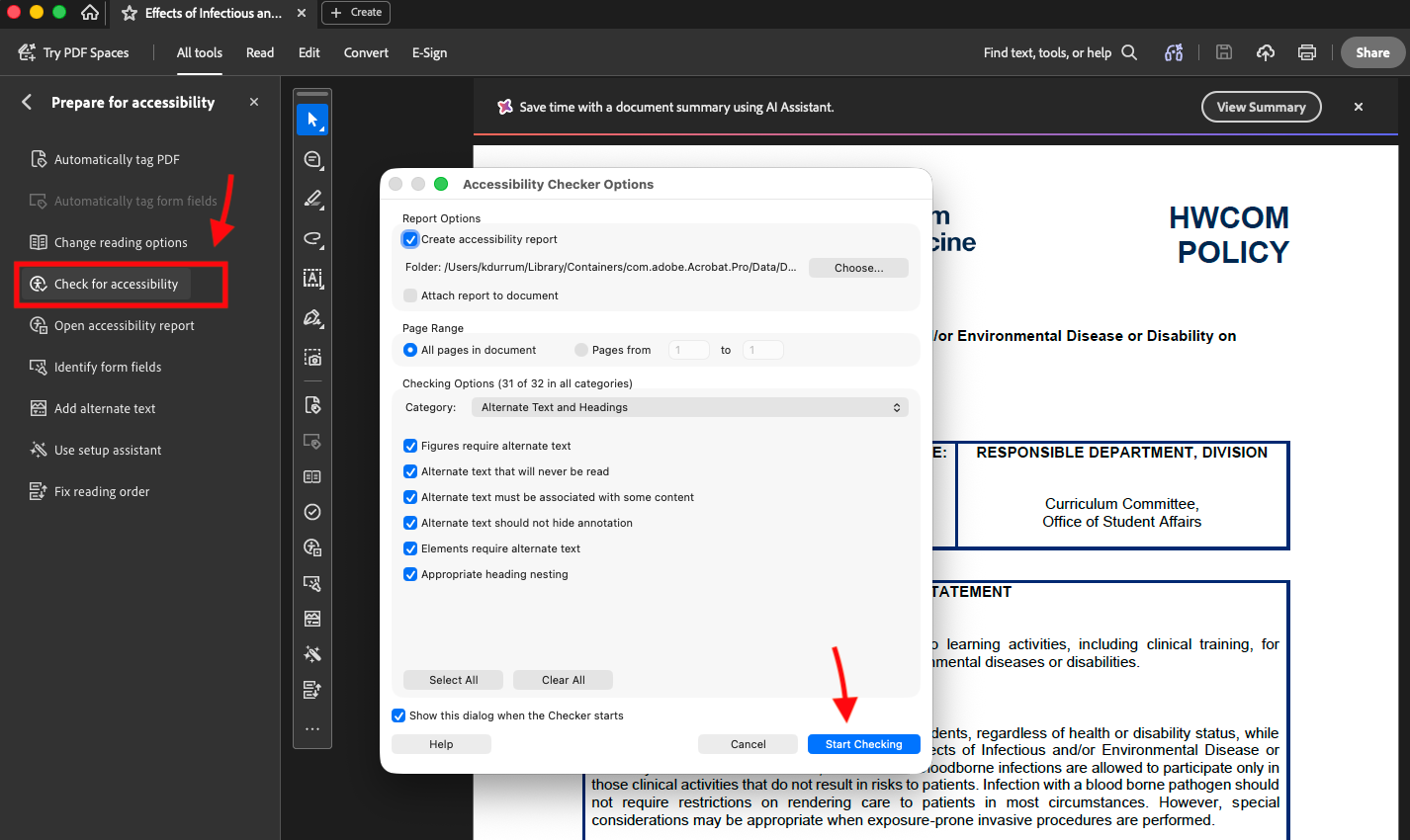
As pictured above we want to check our document for accessibility before it gets uploaded to a website. If there are no errors or red flags in your document, the checker will say there are zero issues. However, if issues are found, you can go point by point through the document to correct them.
Next steps
Remember, if you create your documents in Word, PowerPoint or Adobe Acrobat Pro, you'll have a built-in system for testing and fixing accessibility issues. It's up to you to test your PDF before sharing!