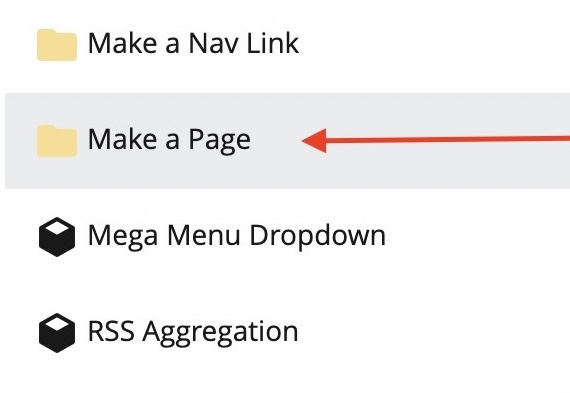
We've already covered how to make a page in Cascade, but felt it was worth addressing the difference between the Make a Page and Make a Folder buttons, which some users might find confusing.
The big difference between a page and folder is that a page is where you put content that you want visible on the site, like modules and banners. Meanwhile, a folder is the container that determines a page's URL and where that page is stored.
What might be confusing is that the Make a Page function creates a page and its accompanying folder. We make the function do both steps because folders help keep content organized and resulting URLs clean and easier to use.
Creating pages
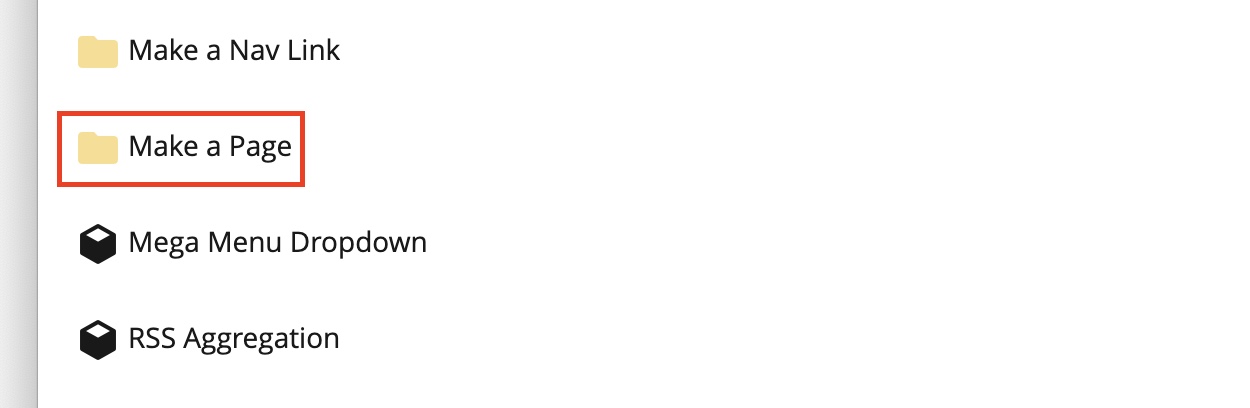
If you want to add a new page to your website, you should click Add Content in the top-left and then Make a Page.
Once you submit your new page, you'll get a folder labeled with your chosen Display Name and its accompanying page (highlighted by a red arrow in the screenshot below).
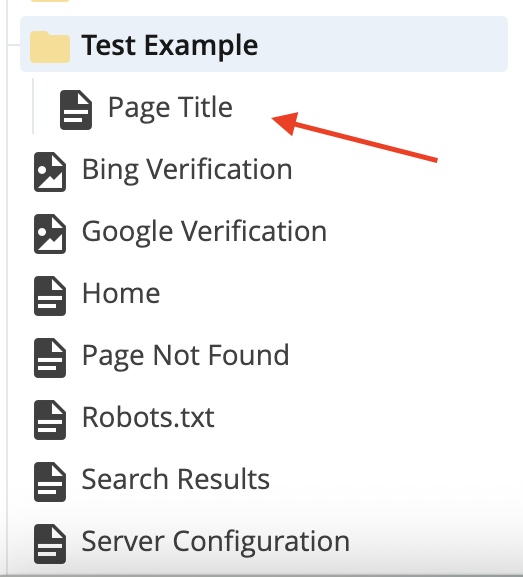
In this case, the page will appear under the Test Example folder using the path /test-example/ on your website. Notice how the Display Title determines the name of the folder (which would be how it appears in navigation menus) and the URL, but not the Page Title.
When do I create a folder on its own?
Creating a folder by itself is helpful for when you need to store things in a container, like photos, blocks and files.
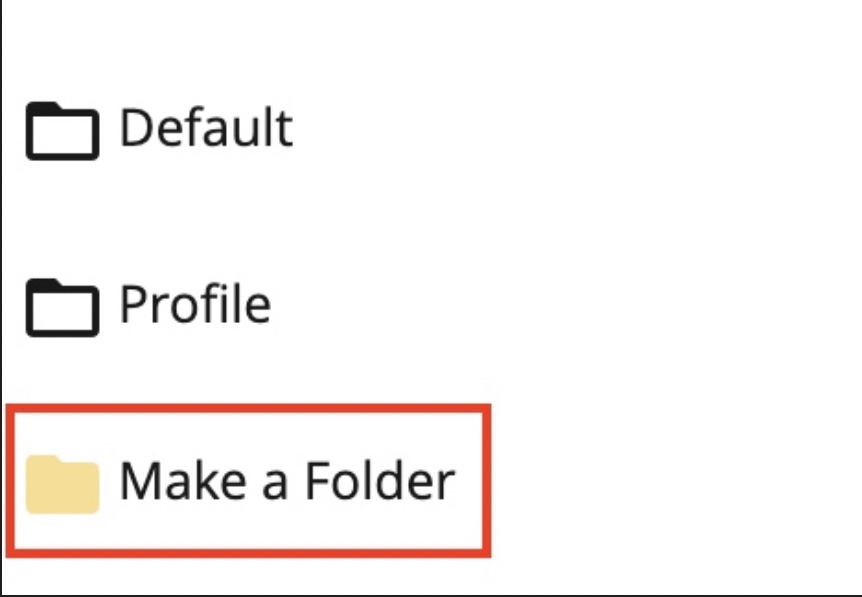
For example, you might be creating a Meet the Team section with some profiles of your unit's staff. You can click Add Content and then Make a Folder to create an empty folder for all your profile photos to keep them distinct from the assets folder you use to organize your site's files and images.
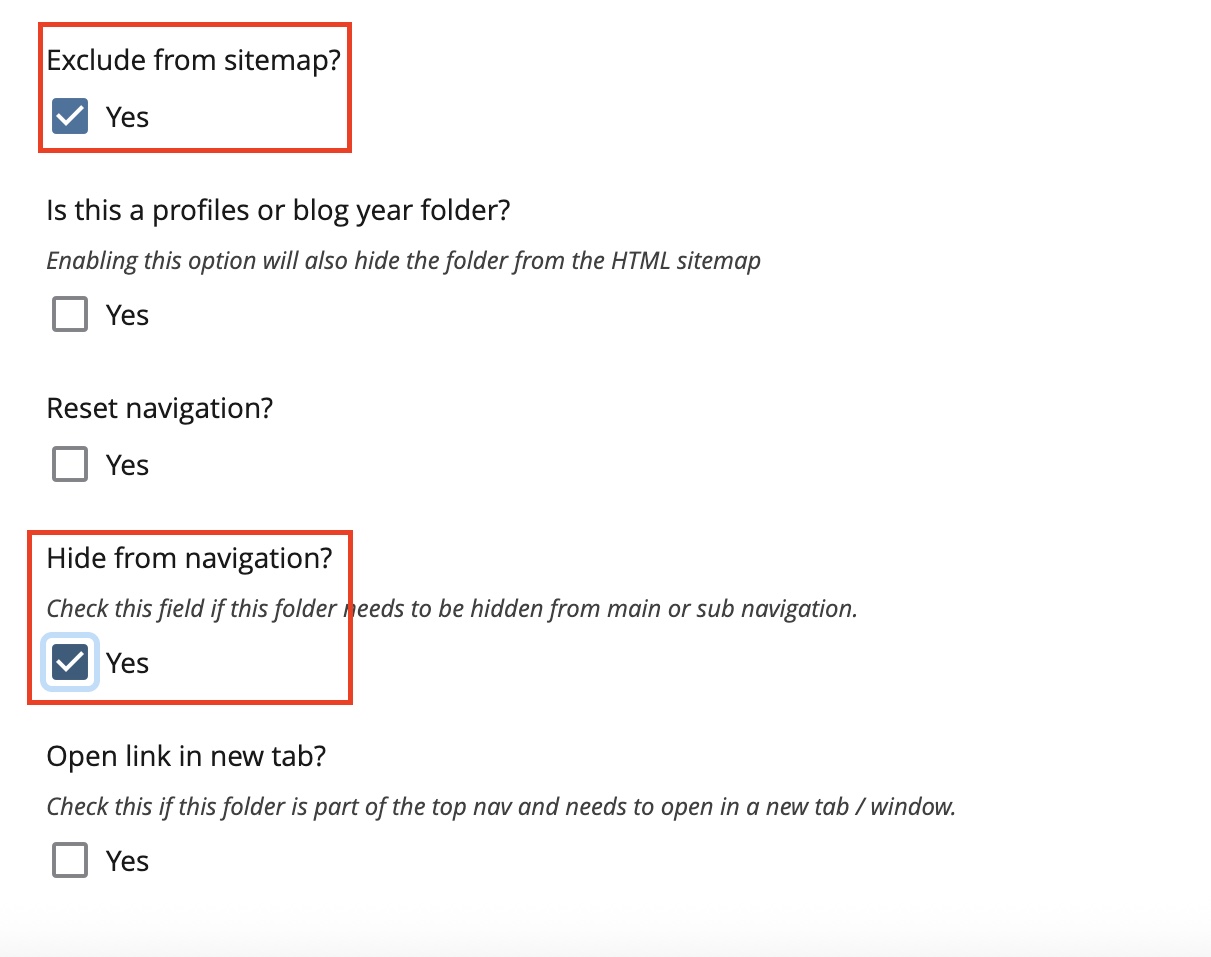
If you are creating a folder just to store files, be sure to check the boxes labeled Hide from Sitemap and Hide from Navigation so users can't navigate to your pageless folder from your website. Make a Folder does not create an accompanying page, so users clicking a link to the folder will end up with a 404.