
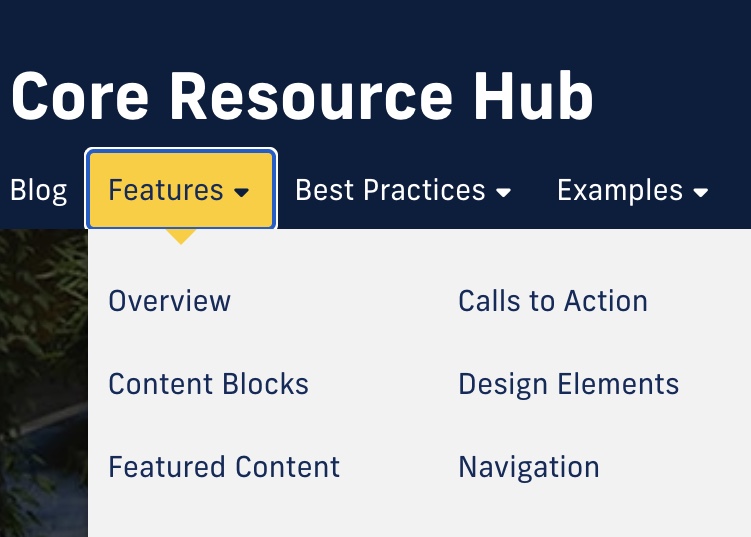
Cascade's folder structure can feel a little overwhelming at first, especially if this is the first time you're managing a site. Luckily, the structure is straightforward once you know what the different components are called and how they work with each other.
Using our Core Resource Hub as an example site, we'll talk you through Cascade's nesting structure and how it functions.
Root Folder
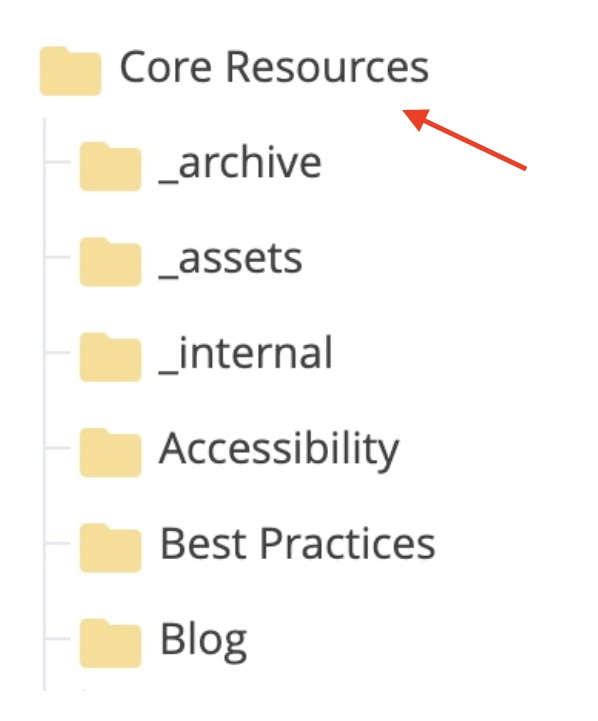
The root folder shown above is the highest-level folder which stores all of your website's content. You will always find the root folder at the top of Cascade's Site Content sidebar, with your site's name as the folder's Display Name.
Once you have a root folder, you will automatically have a Home page. The home page is what visitors see when they first log into your site.
Main Navigation
Now that you have a home page, you can start building out the main navigation. The main navigation is the primary way users can click through your site. It separates your website's contents into sections, represented by the main navigation bar at the top of your website.

On our site, our content is organized by subject matter, labeled according to the Display Name of folders immediately one level under the root folder.
To make a new tab for your main navigation, you need to create a folder inside the root folder. All folders created directly in the root folder will become main navigation items unless you hide them.
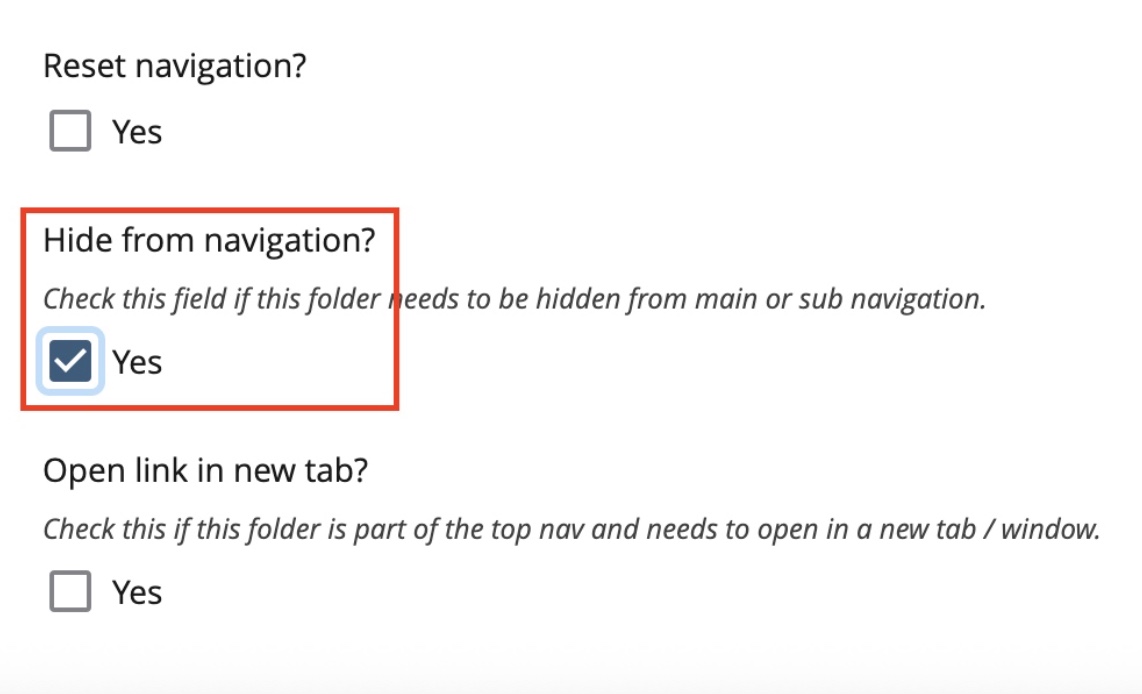
To hide items, check the Hide from Navigation box when creating a new folder or page. Asset or archive folders are good examples of items you might want at the top level, but not displayed in your navigation.
Subnavigation
Now we've seen what happens when you create a folder right under the root folder, but what happens if you create another folder inside that one?
This is how we create a subnavigation. A subnavigation contains the items that appear under a main navigation item when you hover over it with your cursor.
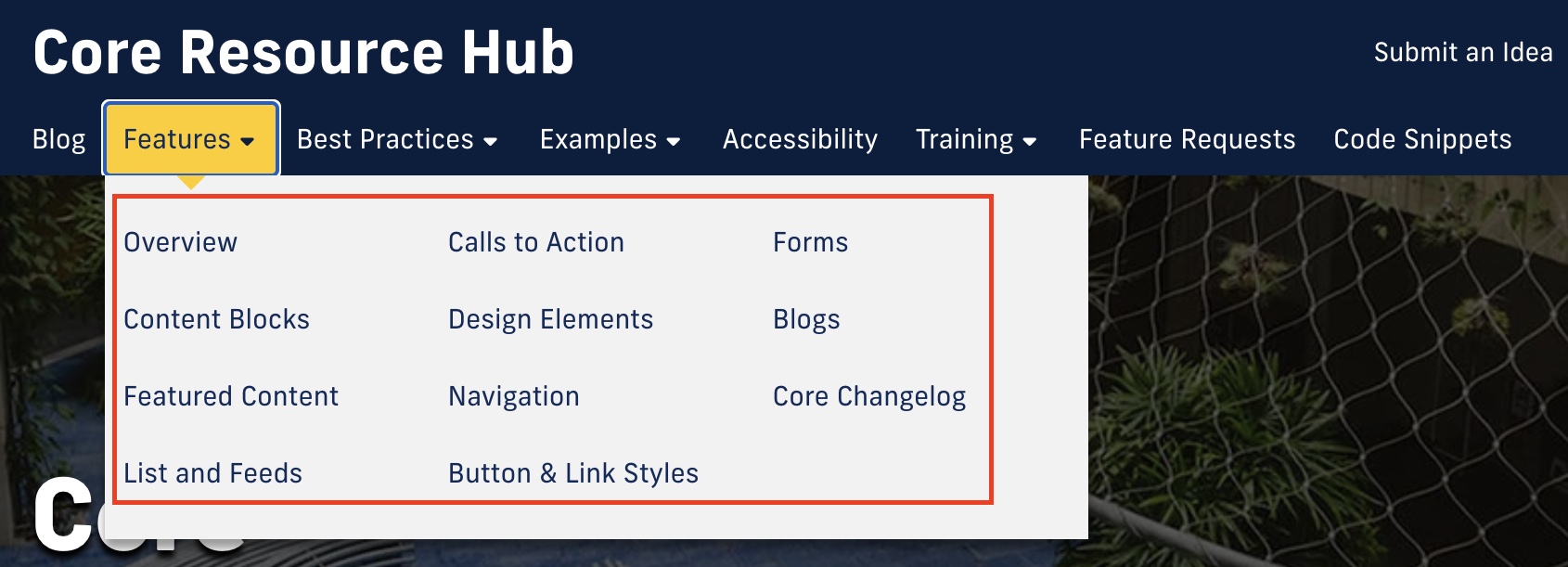
For example, our Core Resource Hub's Features section has different pages showcasing our template's modules. All the folders displayed above would be listed in the subnavigation for Features.
The same rules about visibility in the main navigation apply for subnavigations. All items are visible by default, unless you check the Hide from Navigation.
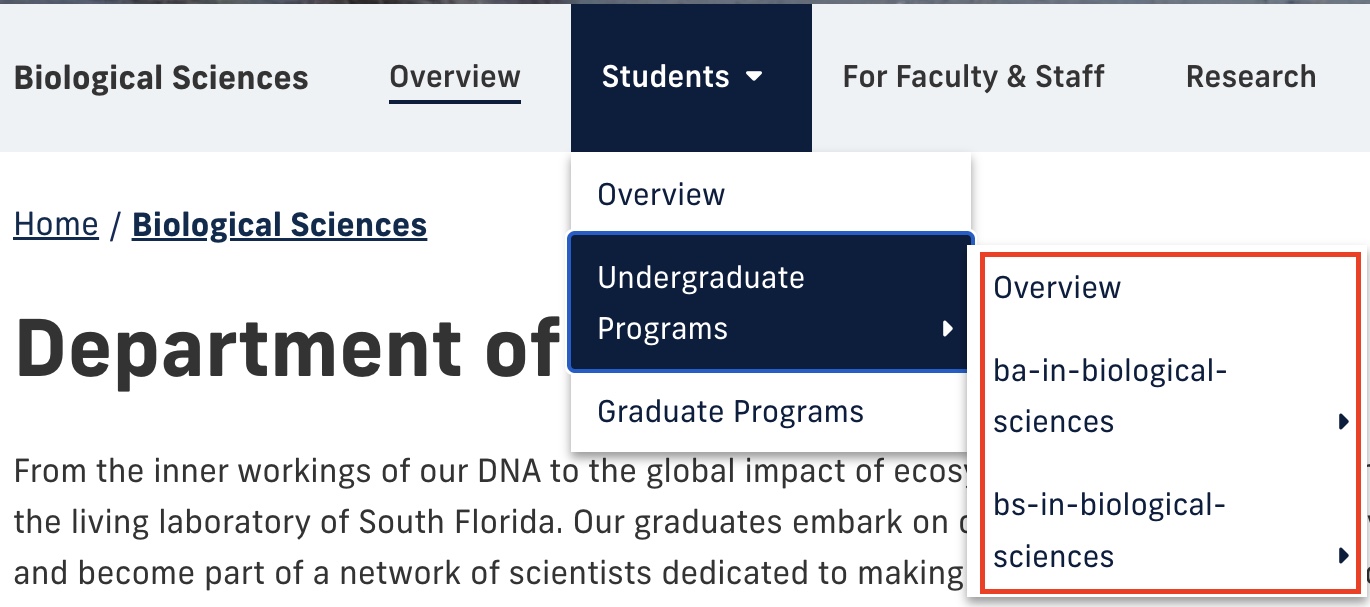
Subnavigations can also have subnavigations inside them. Generally, fewer clicks is better for user navigation, but we sometimes need more complex subnavigations to organize our content.
Reset Navigation
Complicated layers of subnavigations can make it difficult to find pages once you're a few folders deep.
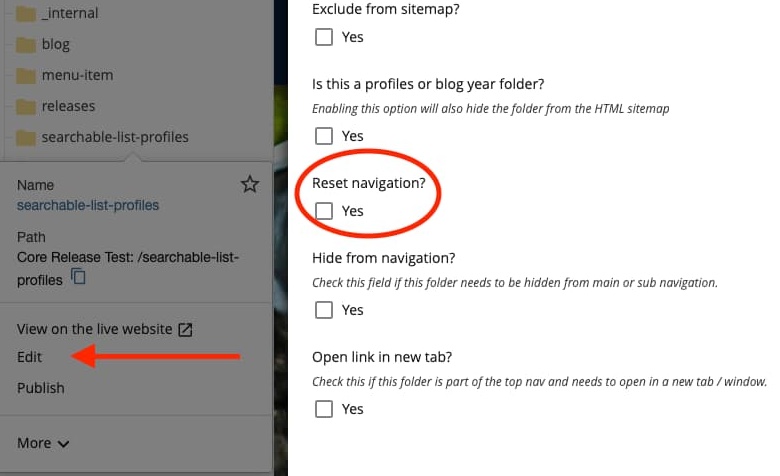
This is where the Reset Navigation feature can come in handy. Resetting the navigation lets you define a subfolder as the new "starting point" for a subnavigation.
Tertiary Navigation
The tertiary navigation is a special type of navigation that is always visible in the top-right corner of your site.

The tertiary navigation is a good way to highlight specific pages on your site. It could be a popular page that requires many clicks to find, or one that allows your users to take an action regardless of what page they're on (like "Apply Now").
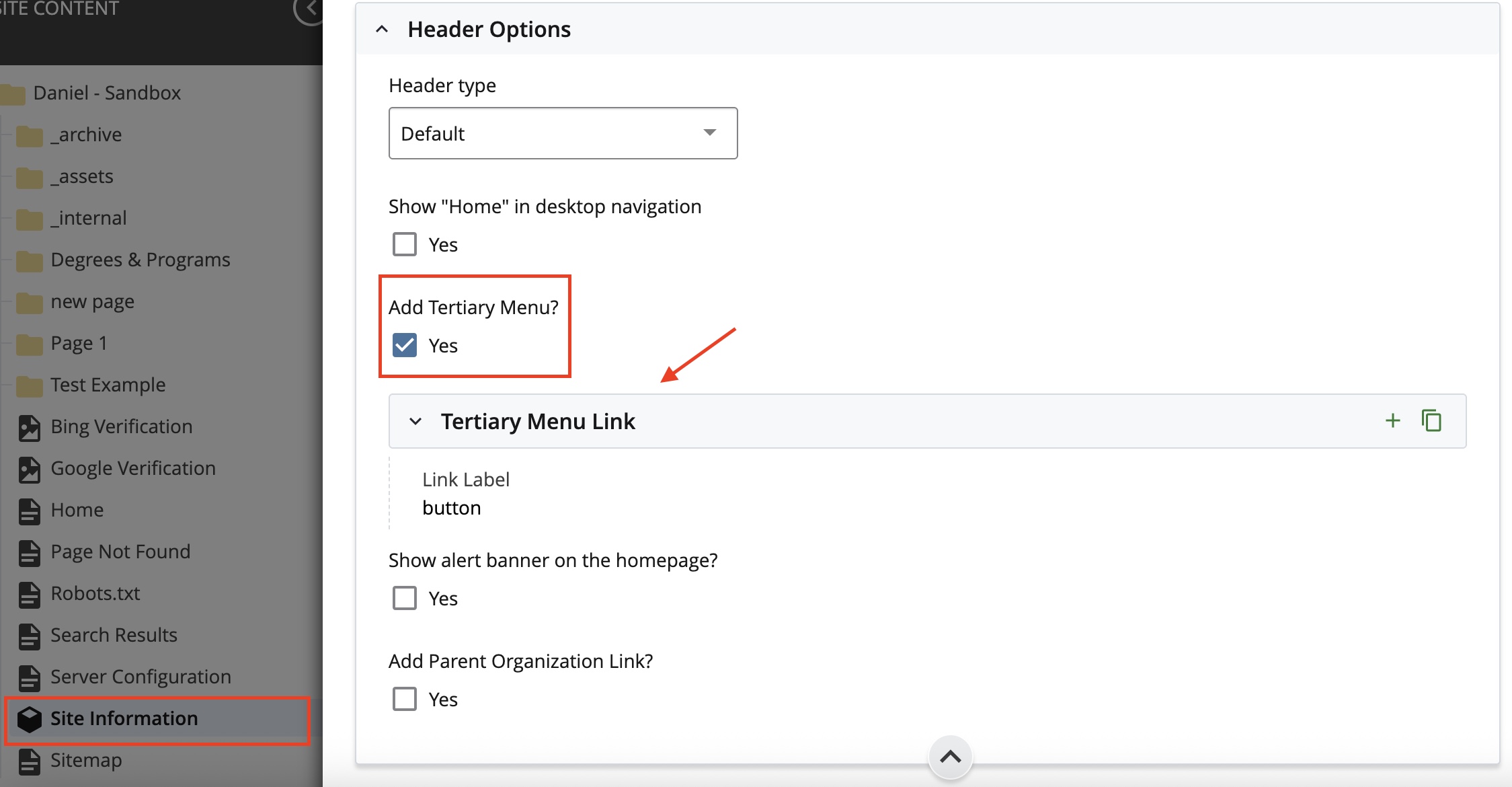
To activate your tertiary navigation, scroll down the site directory until you see a block labeled Site Information. Click Site Information and then Edit. Scroll down and you will see a checkbox to Add Tertiary Menu.
Footer and Prefooter
There are more ways to explore your site than just the navigation menus. At the bottom of a page in Cascade, you will find the site footer and site prefooter right above it.

The footer is a set of predetermined links that showcases important resources and ways you can connect with FIU. The footer is a default section for every FIU site on Cascade.
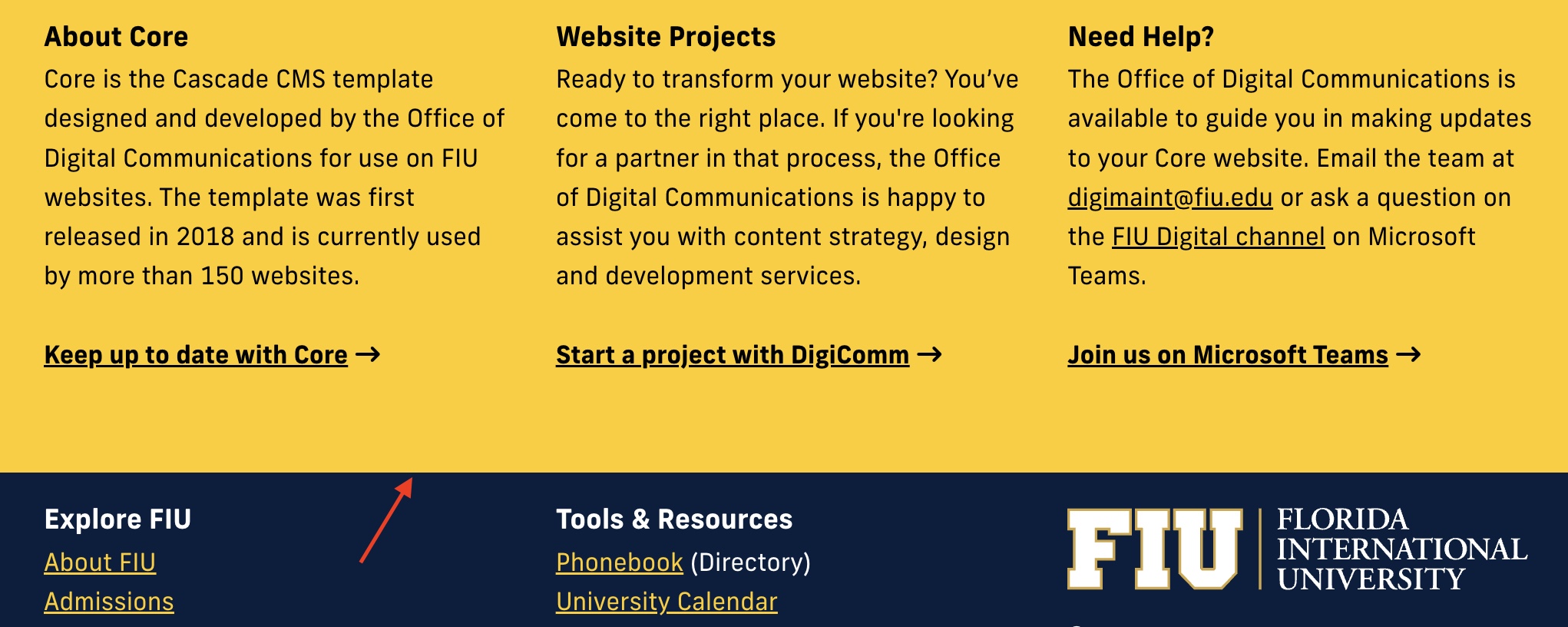
The prefooter, as the name suggests, comes before the footer and is exclusive to your site. It's separated into columns, which you can edit like most other content fields on Cascade. Some sites use it to display lists of quick links, while others (like the Core Resource Hub) use it for short descriptions or contact information.
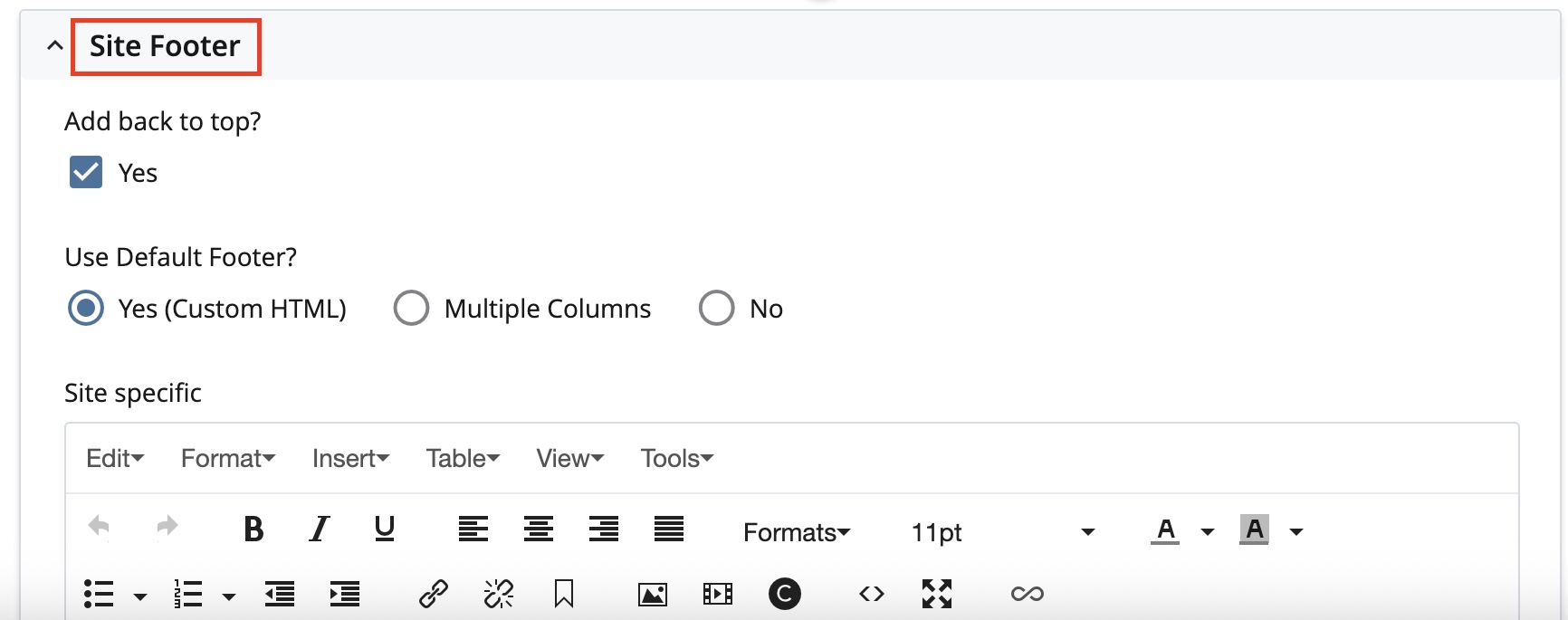
Setting up a prefooter is similar to setting up a tertiary navigation. Go to the Site Information block and hit Edit. Scroll down and you will see a tab labeled Site Footer. In this tab, you can customize what content appears in your prefooter.