


If you're seeing a "Link missing a text alternative" error in your Siteimprove Accessibility dashboard, there's a good chance you have an improperly formatted link. We'll call these "invisible links," because they're not usually visible or clickable on your page.
Invisible links present a major accessibility and usability issue. Luckily for us, they're easy to fix and even easier to avoid!
Why does this error happen?
Invisible links are usually the result of hyperlinked text being deleted without first removing the link.
A good example of this is when you manually highlight a link by left-clicking and dragging, then hitting the Backspace or Delete key. You might successfully delete a word, but leave a hyperlinked blank space next to it.
How do I find invisible links if I can't see them?

Siteimprove's Page Report highlights the invisible link for you to fix. In the regular Page view (shown in the screenshot above), it will highlight the area with a little rectangle or square, though it can sometimes be difficult to see.

Click View HTML to use the Page Report's HTML view, which shows your site's source code. It might look a little overwhelming if you're not used to working in HTML, but we promise its straightforward so long as you read carefully. It also works well with Find and Replace features.
Once you've located the invisible link, just head over to Cascade and use the Source code view to find the error on your page.
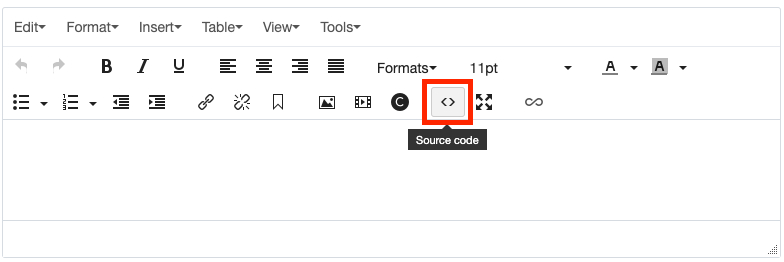
Click the text editor's Source code button and find the piece of improperly formatted code. Either fix it by adding text between the <a> tags or delete it if it's no longer a necessary link.
Properly formatted links should always have text between the <a> tags.
Properly Formatted Link
<a href="https://example.fiu.edu">Check out our example website!</a>
Improperly Formatted Link
<a href="https://example.fiu.edu"></a>
Both of the links above lead to our fictional FIU Example website, but only the properly formatted link will be displayed on the page and clickable.
Of course, the best practice is to check for bad links before submitting your draft and publishing. Make sure to double-check your <a> tags if you're doing a lot of editing!
Important note: Use descriptive text that makes it clear where the link goes. That means something like "Visit our Admissions website" and not "Click here."
How do I avoid the issue in the future?
An easy way to prevent this issue is by clicking Remove link when you're deleting links.

This removes the <a> tag from whatever link you're clicking, turning it into regular text which you can safely delete without errors.
If you're creating new links, make sure you're filling in the Text to display field.

The Text to display field is responsible for the text that will be visible for your link. If it's blank, you'll be creating an invisible link. Oops!
Do these practices apply to images?
You always need to include a text alternative for images being used as links. For images, text alternatives refer to an image's alt text, a key part of accessible images. Note that linking an image makes it functional, not decorative. Therefore, linked images always need alt text.
Alt text should describe the image, not the link. For example, a photo of a red car being used as a link to a car dealership should have alt text reading "Red car" not "Car dealership" or "Link to car dealership."
What's next?
Avoiding invisible links comes down to incorporating the best practices from this post into your skillset as a web content manager. You also want to conduct regular Siteimprove audits to catch these issues when they do arise.
Check out our blog posts on Getting access to Siteimprove and Finding QA and Accessibility reports in Siteimprove for more information. You can also check out our Siteimprove training webinar, where I walk you through finding and fixing issues like invisible links—complete with a video and transcript!
As always, feel free to reach out to our team at digimaint@fiu.edu if you have any questions about your website!