
With new updates to federal accessibility requirements, PDFs are coming under higher scrutiny.
This probably isn't the first time you've heard that PDFs are difficult to make accessible. We've written about creating accessible PDFs before.
The truth is, we shouldn't be relying on PDFs to convey important information. We understand there are a lot of legacy documents on our websites. With that said, the most important thing is knowing what's out there.
This post will show you how Siteimprove can help you track your website's PDFs, when they were created and whether they have accessibility issues.
Finding the PDFs on your website
If you're following best practices for file management on your website, you should be able to find your PDFs in a documents folder. But we know work can get busy, and you don't always upload your PDFs and other files to the same folder.
Siteimprove has a PDF audit tool that details the number of:
- PDFs on your site
- PDFs with accessibility issues
- PDFs missing tags (according to Siteimprove, "Tagging adds a logical structure to the document to make sure it can be reused and accessed reliably.")
- PDFs that are not machine-readable
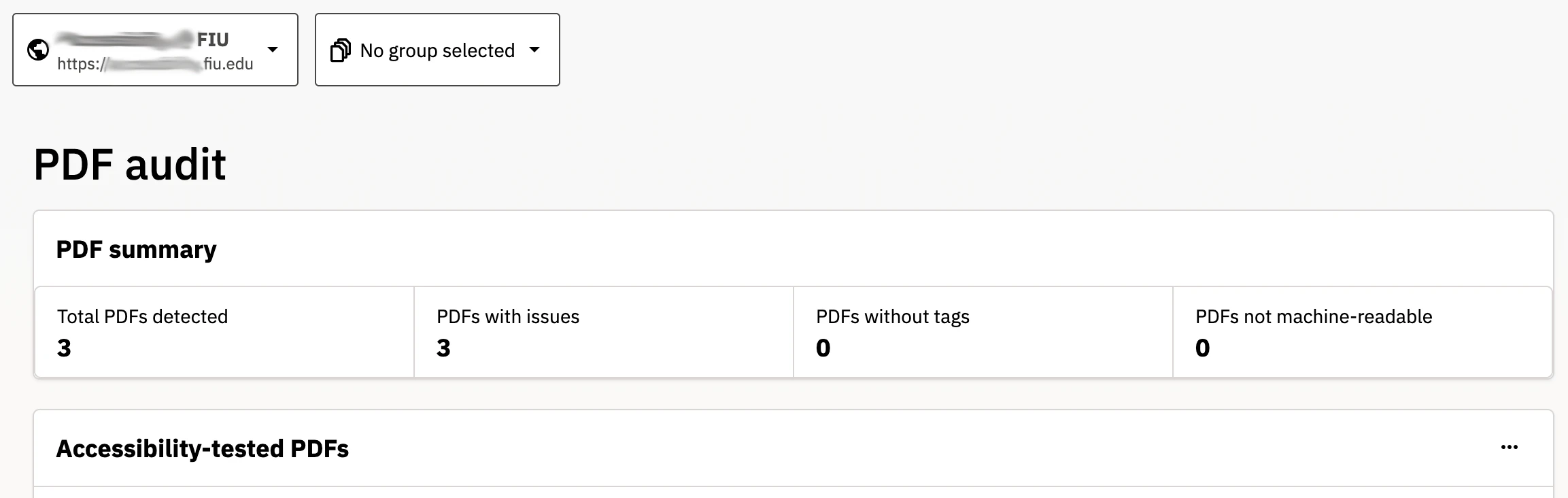
You can find the PDF audit page in your Siteimprove profile by:
- Select your site in Siteimprove
- In the left-hand navigation, click Accessibility
- Scroll down within the menu and select PDFs
- Click PDF audit
Reviewing your PDFs by date
There are a couple of ways to review your PDFs. For example, you might check newer PDFs for accessibility issues or delete older ones.
Thankfully, Siteimprove's PDF audit tool allows you to sort your PDFs by date.
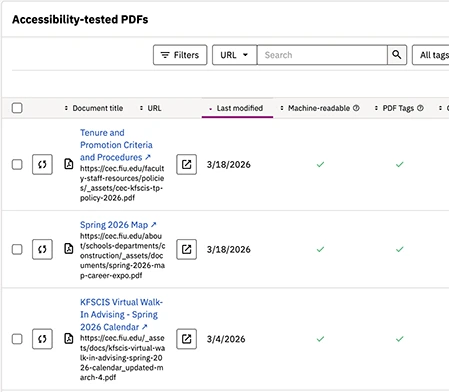
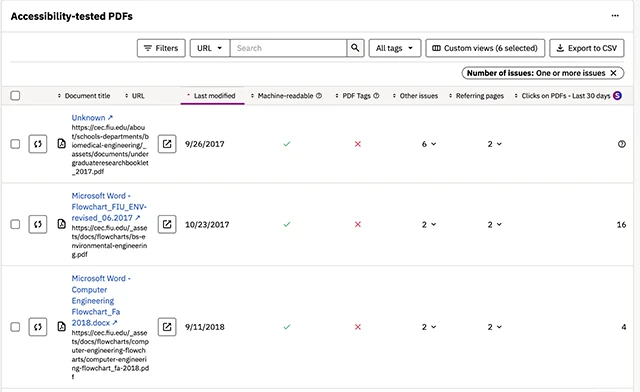
To sort your PDFs by date in the PDF audit tool, click on the Last Modified column to sort by date.
Check if your PDFs are accessible
The most-important functionality in Siteimprove's PDF audit tool is the accessibility checker.
The PDF audit tool provides detailed information for every PDF it finds on your website:
- Document title
- URL
- Last modified date
- Pages on your site that link to the PDF
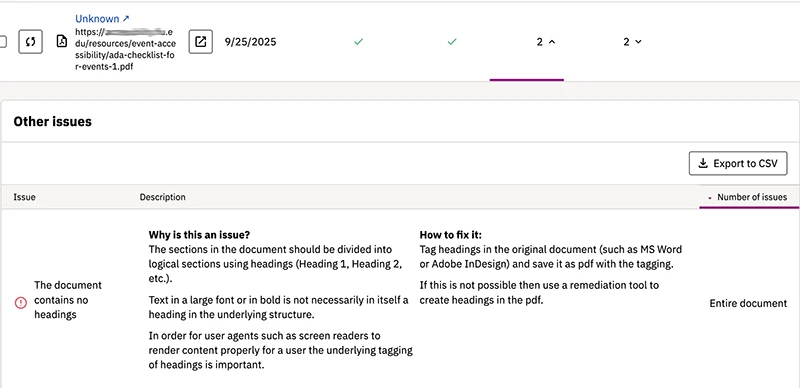
- Specific issues, such as missing headings, titles, tags or not machine-readable
Best of all, each listed issue explains why it matters and how to fix it.
Next steps
Now that you can identify PDFs on your website with accessibility issues, it's time to fix them. The best thing you can do is rely less on PDFs and start converting the information in these documents into webpages.
If that isn't an option, read our post Accessible Documents: Ensuring Access for Everyone. The Disability Resource Center is also available to help you through this process.
The university provides short how-to videos to help you make your documents accessible in Word, PowerPoint, Canvas and PDFs.
Your website may have more PDFs than what Siteimprove is finding. Siteimprove only finds PDFs that are linked on your site. You might have many more unlinked PDFs. As part of your review, check for and delete outdated documents. You can use Cascade's asset relationships feature to find PDFs that aren't linked anywhere on your website.